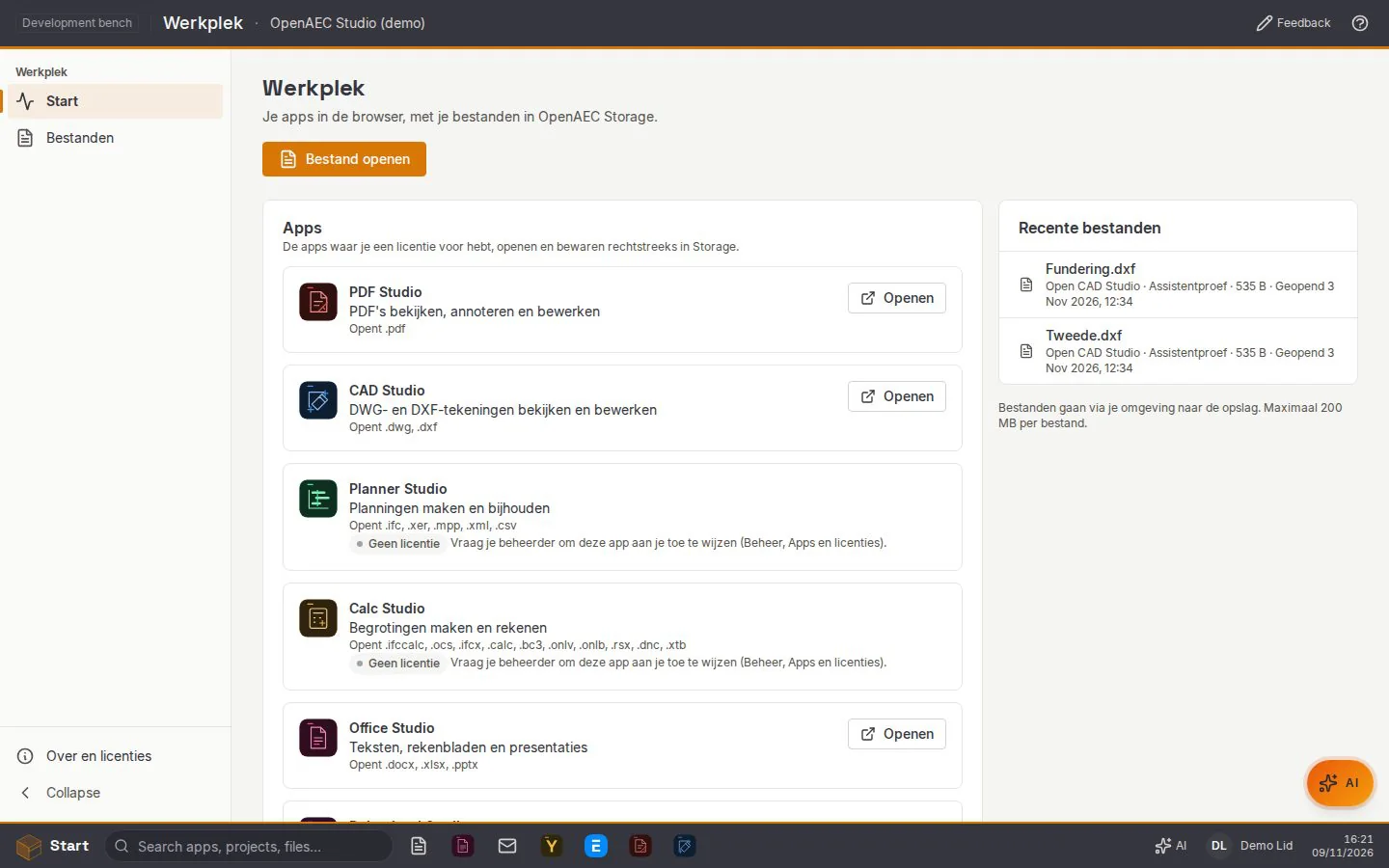
Work
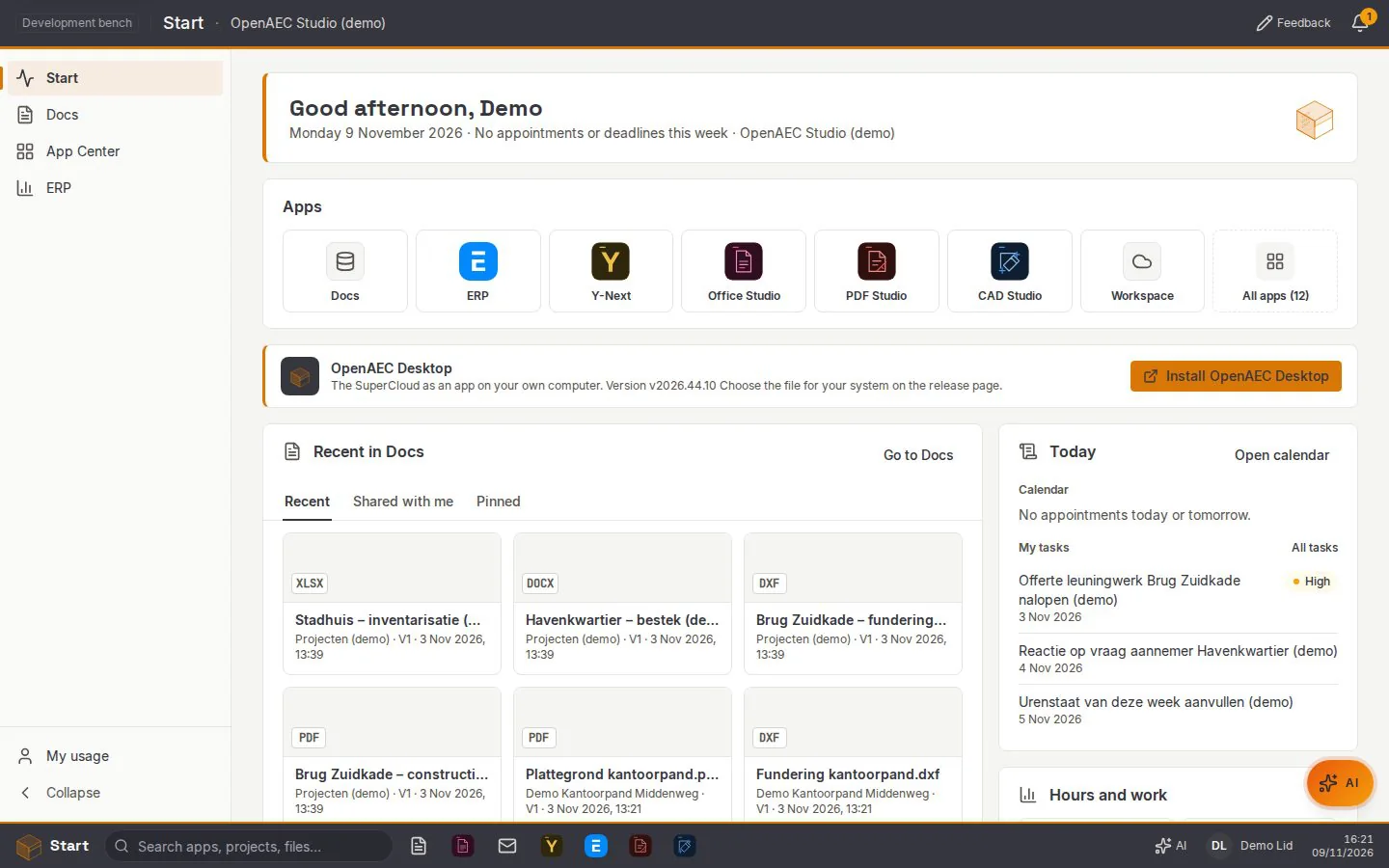
ERPNext on the Frappe Framework: quotes, invoices, purchasing, stock, projects, hours and accounting in one system, with a clear workspace.
Coming soon · project files and apps
All the software for your construction company in one place
SuperCloud brings ERP, project files, BIM, drawing, calculation and AI together in one European environment, with one account. Everything is open source and your data stays in the EU.
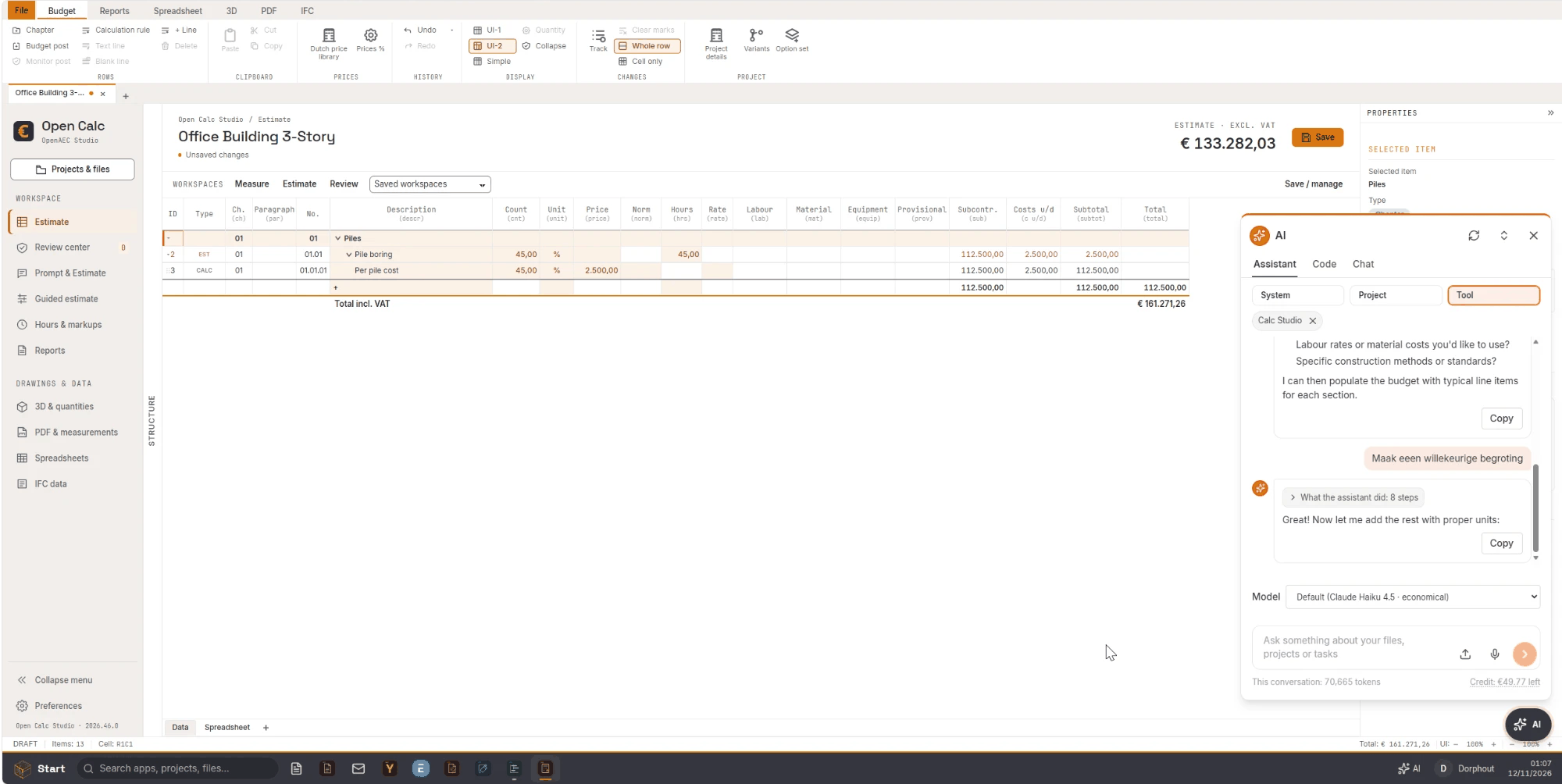
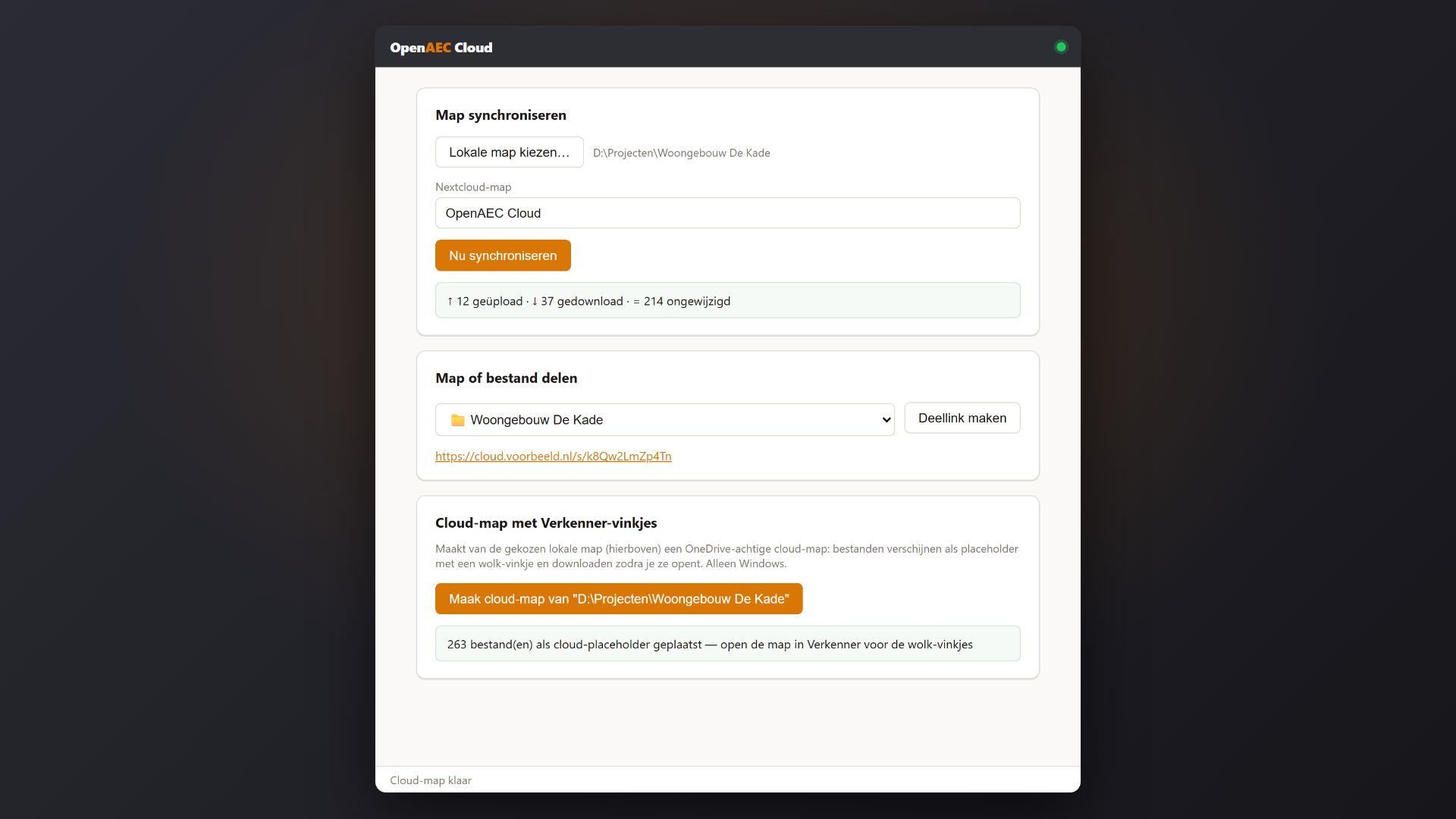
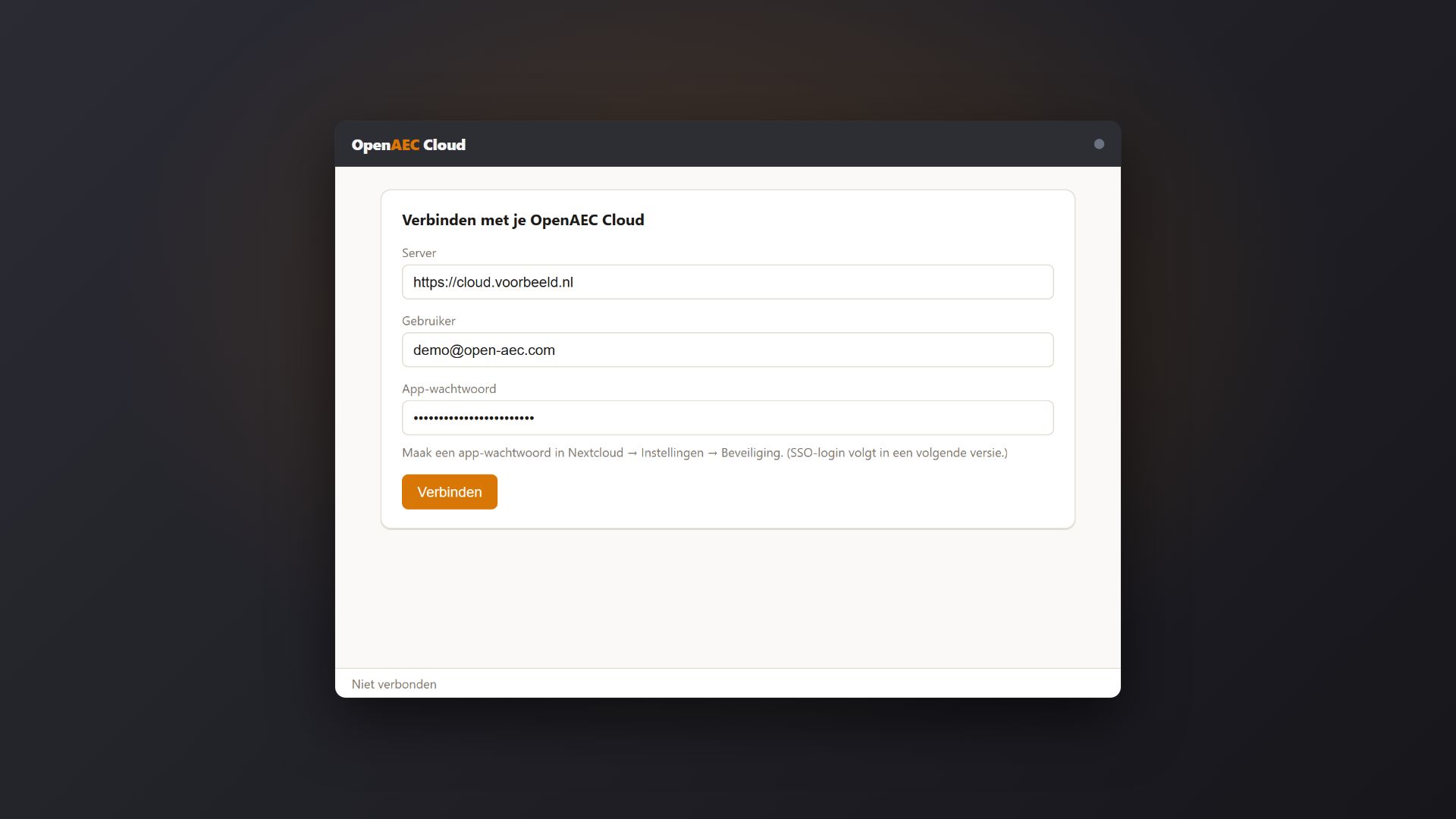
In development. To sync you need an account in an OpenAEC environment. The screenshots show an earlier version of the app; the macOS build and the menus on Linux and macOS have not yet been checked on a real machine.
What is SuperCloud?
Construction companies work with separate programs that do not understand each other. SuperCloud replaces that with one coherent environment, where drawings, models, calculations, planning and administration work on the same data.
ERPNext on the Frappe Framework: quotes, invoices, purchasing, stock, projects, hours and accounting in one system, with a clear workspace.
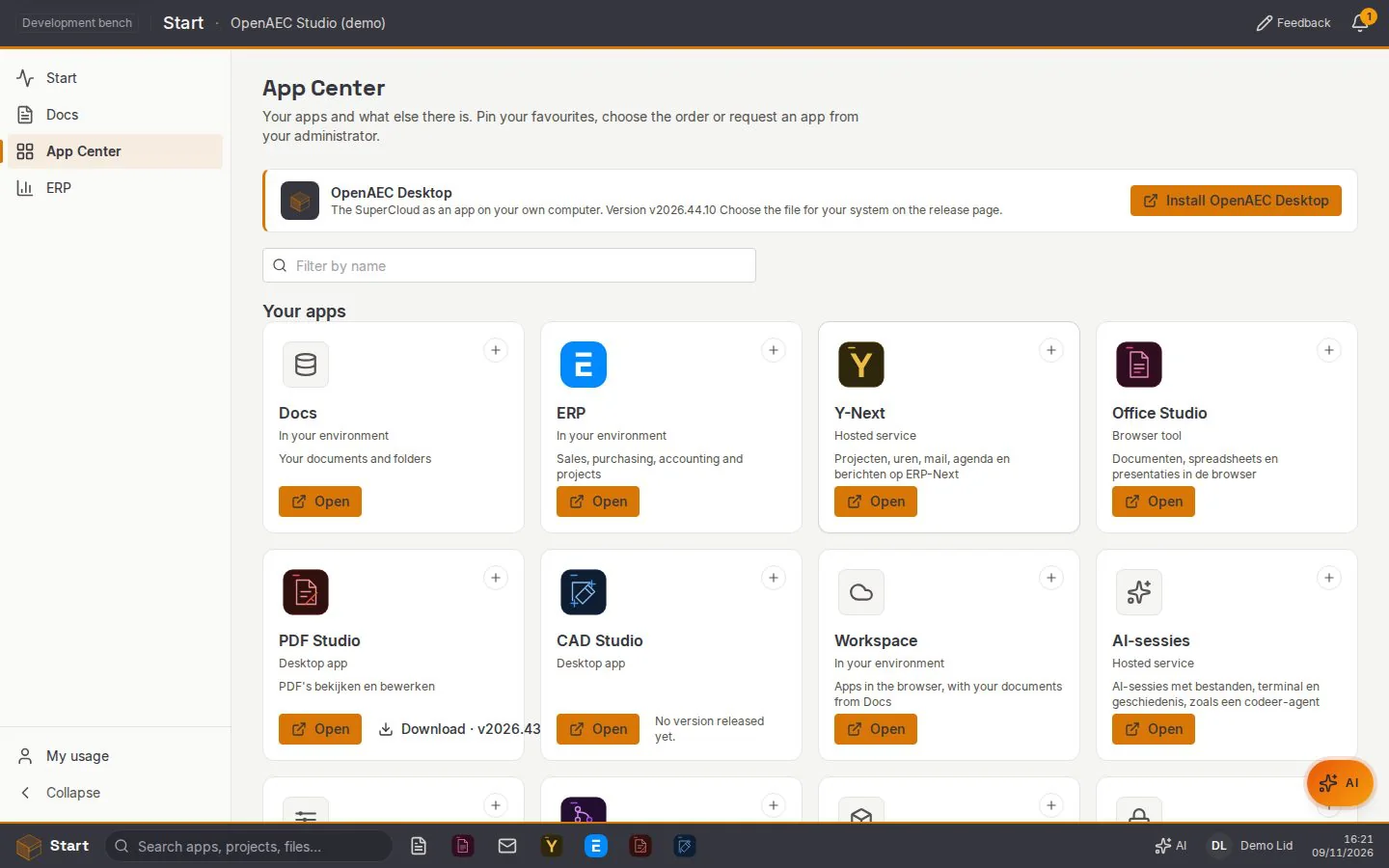
CAD, BIM, PDF, structures, geotechnics, energy, estimating and planning. Switch on what you need from a catalogue of OpenAEC tools and open source apps.
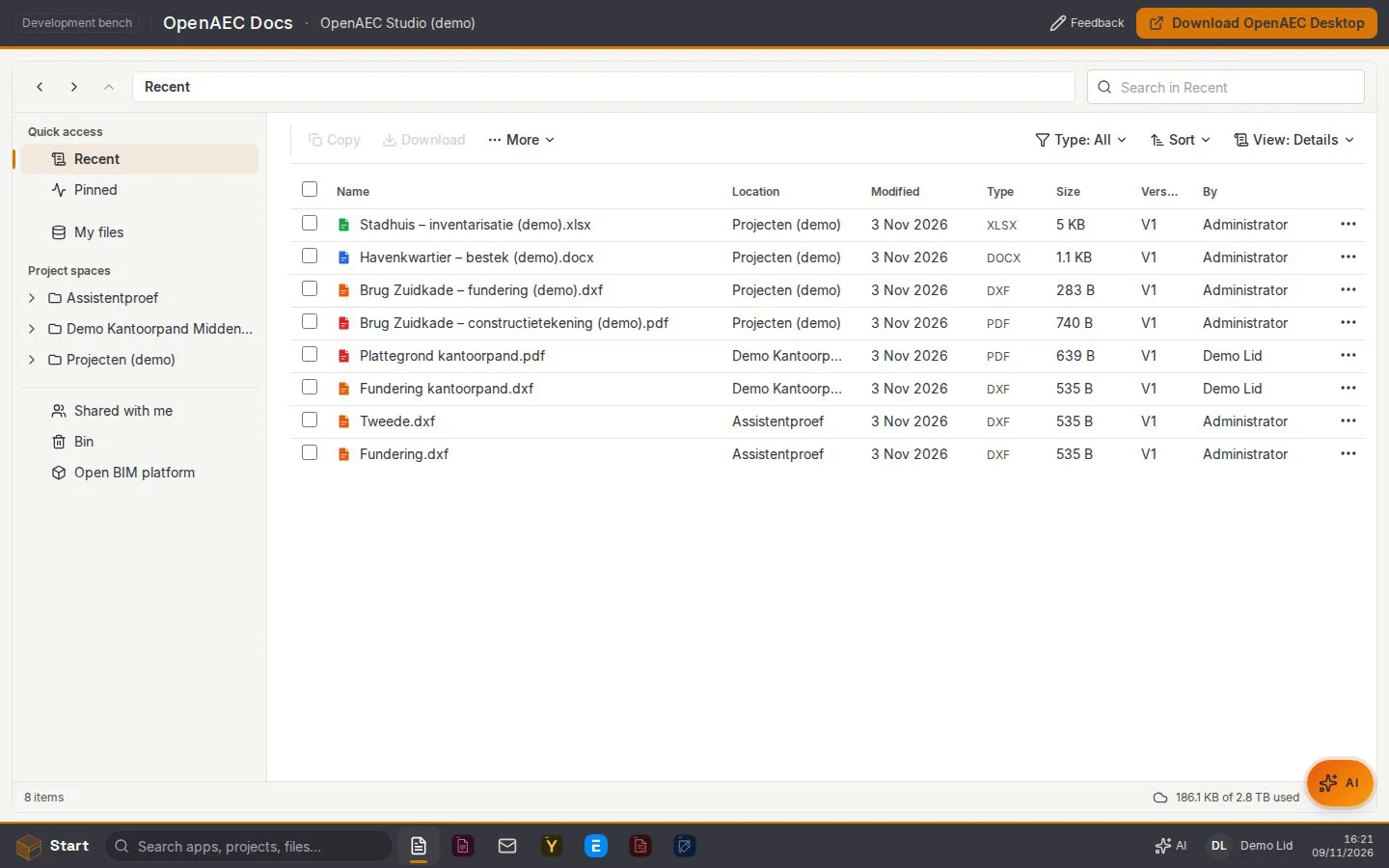
Document management and a CDE: project folders with roles, versions and status, sync with your computer and send large files by link.
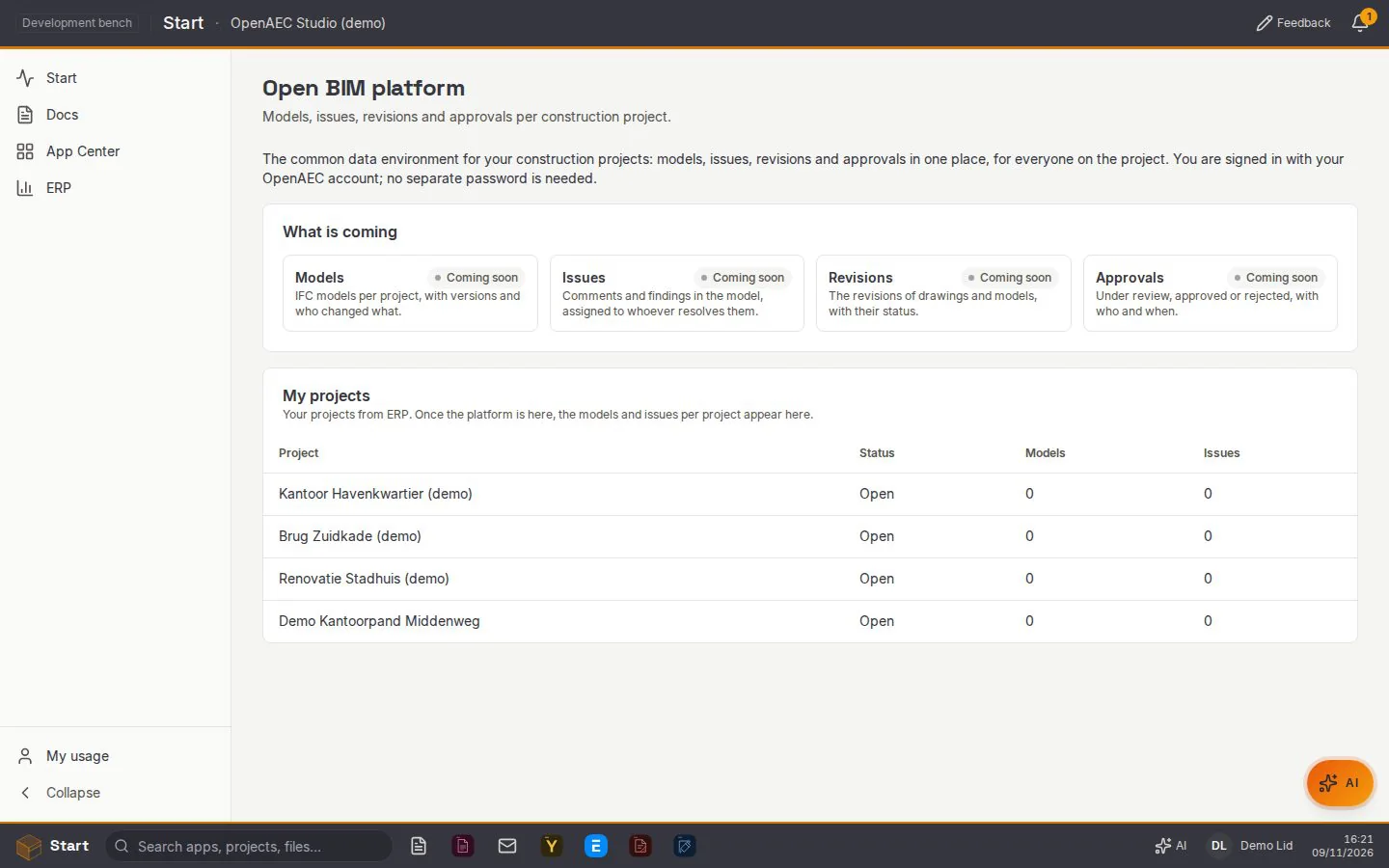
Combine, view and discuss models from every discipline, with BCF issues, clash detection and versions, based on Speckle Server and IFCX.
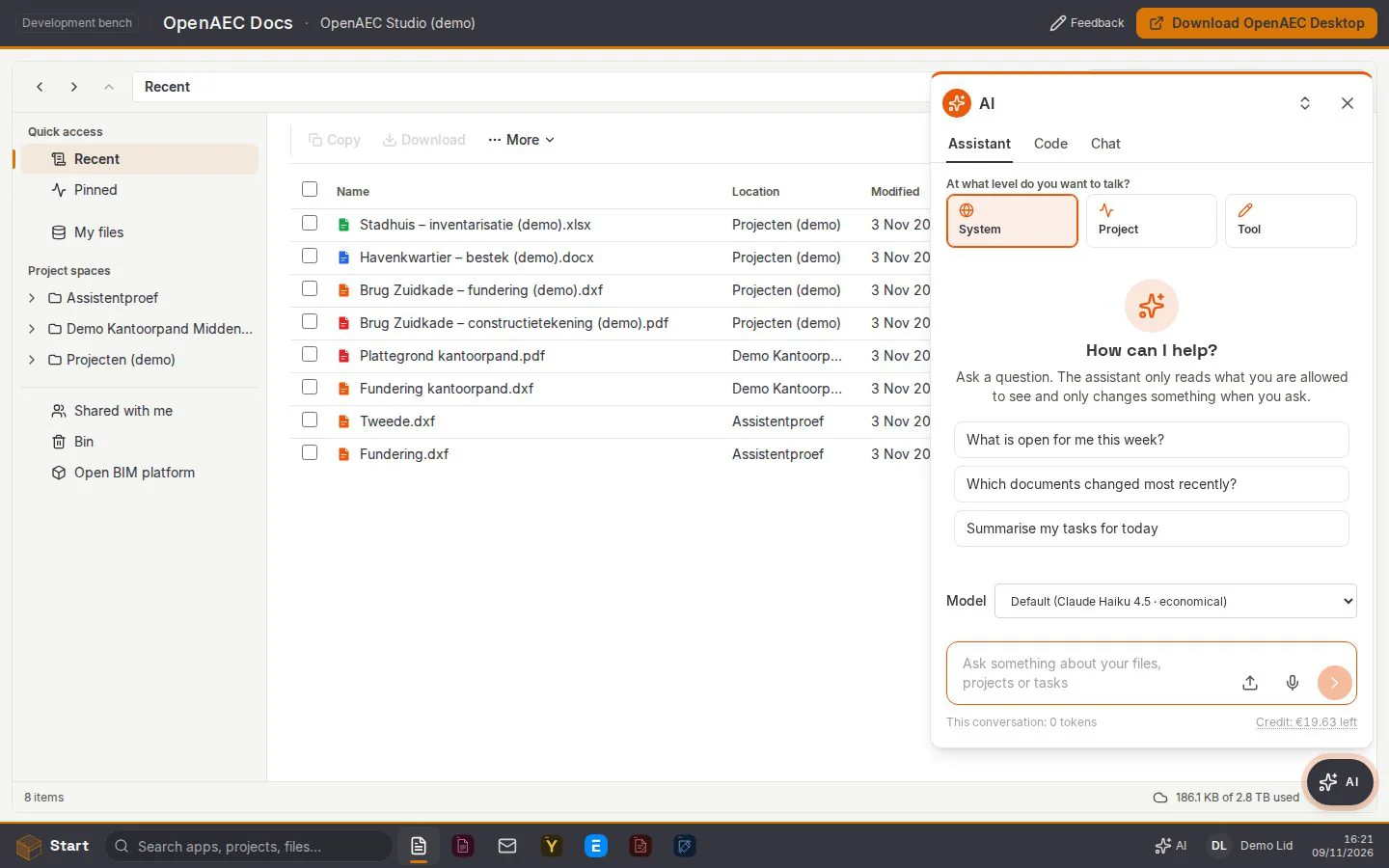
An assistant that can work with your projects and tools. By default it runs on European models, such as those from Mistral AI, and customer data is not used to train models.
A separate database, storage and key per customer, hosted at AWS in Frankfurt, with backups in a second EU region. Sign in with two-factor authentication or a passkey.
One account signs you in to every app.
Isolated, in an EU data centre and encrypted with your own key.
Start with one tool and expand when you want. Nothing is mandatory.
Drawings, models and calculations connect without conversion.
Features
Start with the highlights or pick a topic.
01 Sync
Link a space to a local folder and the app keeps both the same as soon as something changes. When a file changes, only the changed blocks are sent. In a conflict the server decides and both versions are kept, so nobody overwrites anyone else's work.
02 Share and send
Share a folder with a colleague as view, edit or manage, or invite a guest. Files and folders for someone outside your environment are sent as a transfer: the recipient gets a download link, optionally with a message, an expiry date and a password. An interrupted transfer resumes where it left off.
03 Windows
On Windows, OpenAEC Cloud has its own item in the navigation pane. Files can stay online only and are fetched as soon as you open them; status icons show what is up to date, in progress or locked. You share and send from the right-click menu, including the new Windows 11 menu.
04 One app
The Tools tab installs, updates and launches the OpenAEC desktop apps, even without a connection to an environment; every download is verified. In the assistant you ask questions of the OpenAEC AI service in the EU, with files attached.
Syncs as soon as something changes locally or on the server.
On a change only the changed blocks are sent.
In a conflict the server decides and both versions are kept.
Per link, sync only the folders you need on this computer.
Your own patterns in .openaecignore, and safe handling of names Windows cannot use.
Can view, can edit or can manage; never more than you are allowed yourself.
What colleagues shared with you, with their name, your role and the expiry date, ready to link to a folder.
Any file or folder as a download link, with recipients, message, expiry date and password.
Lock a file while you work on it and view earlier versions.
Files can stay online only and arrive as soon as you open them (Windows).
Cloud, ticks and sync arrows per file and folder, plus who has locked a file.
Share and send from File Explorer, including the Windows 11 menu; on Linux and macOS send from the file manager.
Install, update, launch and remove desktop apps; open web tools in the browser.
Questions with attachments (images, text, PDF, Word and Excel) to the OpenAEC AI service in the EU.
A new version is verified and only installed after your click, never in the middle of a sync.
The openaec-storage program syncs spaces on a Linux server without a screen.
New in v2026.44.10
Released on 29 October 2026. What was added since version 0.8.1; the app now follows the year.week version numbers of the other OpenAEC tools.
A conversation with the OpenAEC AI service, with streamed answers, attachments and a choice of model.
Create a space or a folder from the app and invite people to it right away.
An unknown address in the share window is invited as a guest, if the server supports it.
Its own item in the navigation pane, with the spaces underneath.
Share and send now also appear in the short Windows 11 right-click menu.
The app renews its sign-in by itself and only asks you to sign in again when it has to; messages go to a log file.
One European environment for an engineering or construction company: ERP, document management, a CDE, BIM, the OpenAEC tools and an AI assistant, with one account. The OpenAEC Desktop App is how you work with the files from your computer. SuperCloud is still in development.
An account in an OpenAEC environment and the desktop app. After installing, you sign in through the browser, choose a main folder and sync the spaces you need. The Tools tab also works without an account.
Yes: syncing, sharing and sending work on all three. Status icons, files on demand and the navigation pane item are Windows only. The macOS build and the menus on Linux and macOS have not yet been checked on a real machine.
The server decides based on the version your change was based on. In a conflict both versions are kept, so no work is lost. To avoid it you can lock a file while you work on it.
Yes, with Send with OpenAEC: pick files or folders in the right-click menu and the recipient gets a download link, optionally by email, with an expiry date and a password. A folder is sent as a zip. You can withdraw a transfer later.
Questions and attachments go to the OpenAEC AI service in the EU and use AI credit from your environment; the app tells you so before the first question. The conversations themselves are stored locally on your computer and can be deleted.
Shortly after starting and then every six hours the app checks for a new version, downloads it in the background and verifies it against a fixed key. It is only installed when you click it, never in the middle of a sync.
The source code is public on GitHub, but it does not carry a licence yet. The Tools tab builds on the OpenAEC Installer.
For those who want to know how it is built.
The desktop app for Windows, macOS and Linux.
Without a UI, with BLAKE3 hashes per block and delta uploads.
The server: a Frappe app for the administration, with the files in S3 storage.
Placeholders, status icons and the navigation pane on Windows.
Sign in through the browser; tokens are kept in the operating system keychain.
Updates verified against a public key; the macOS build is notarised.
In development. Found something or have a wish? Use the Feedback button or open an issue on GitHub.