Construction planning

Open Planner Studio

Open-source construction planning with Gantt charts, critical path, resources and levelling, baselines and progress — and native IFC 4.3 as the file format. Now also opens MS Project (.mpp) files natively, date-faithful to the minute, with split and manually scheduled tasks visible in the Gantt. On your desktop and straight in the browser.

Download v2026.8.1 Open in your browser View source
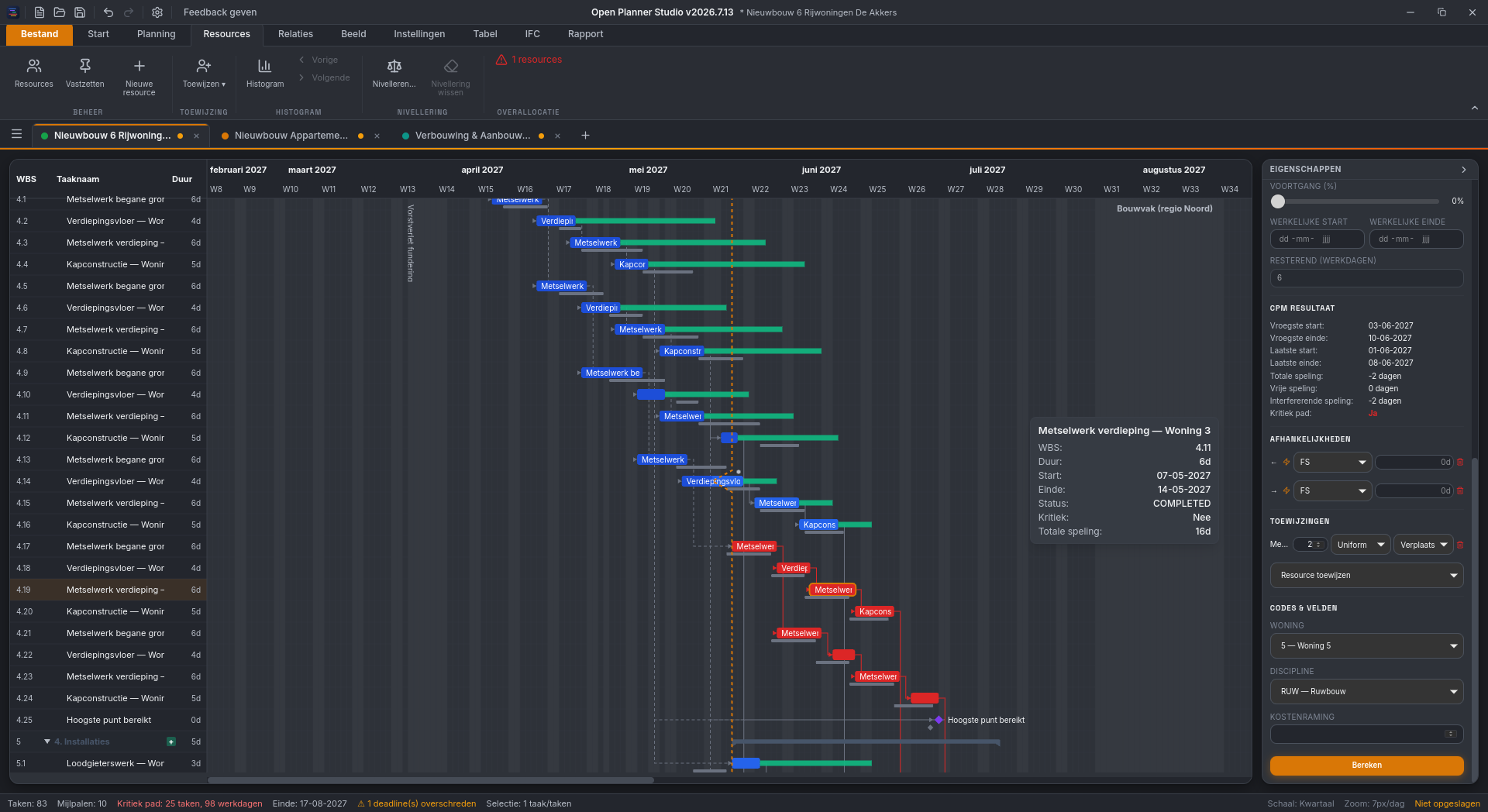
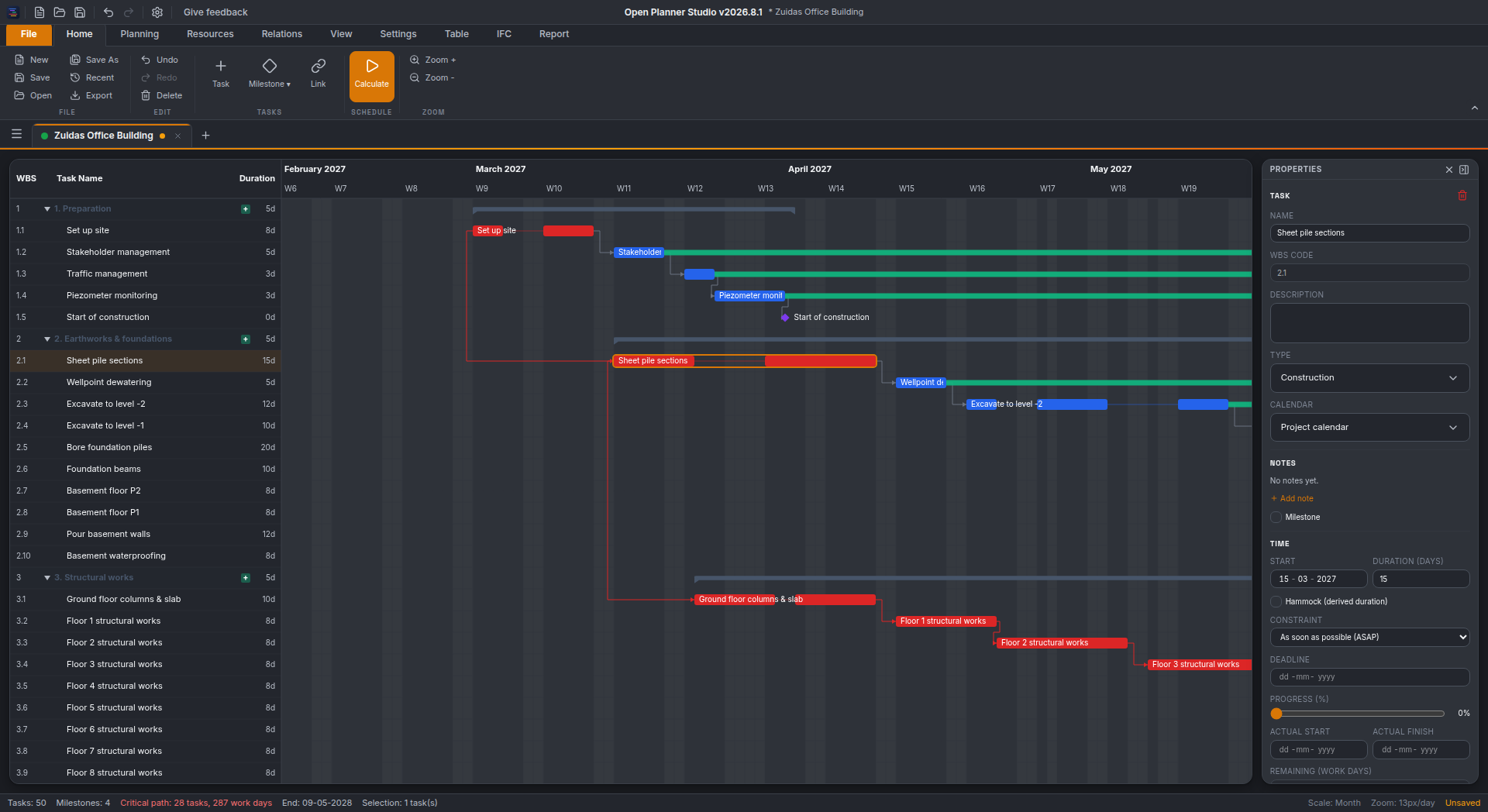
Open Planner Studio — Gantt-planning met WBS, kritiek pad in rood en het eigenschappenpaneel met CPM-resultaat
Open Planner Studio — Gantt met werkonderbrekingen als losse blokken met verbindingslijn, zoals gelezen uit een MS Project (.mpp)-bestand, met kritiek pad en eigenschappenpaneel
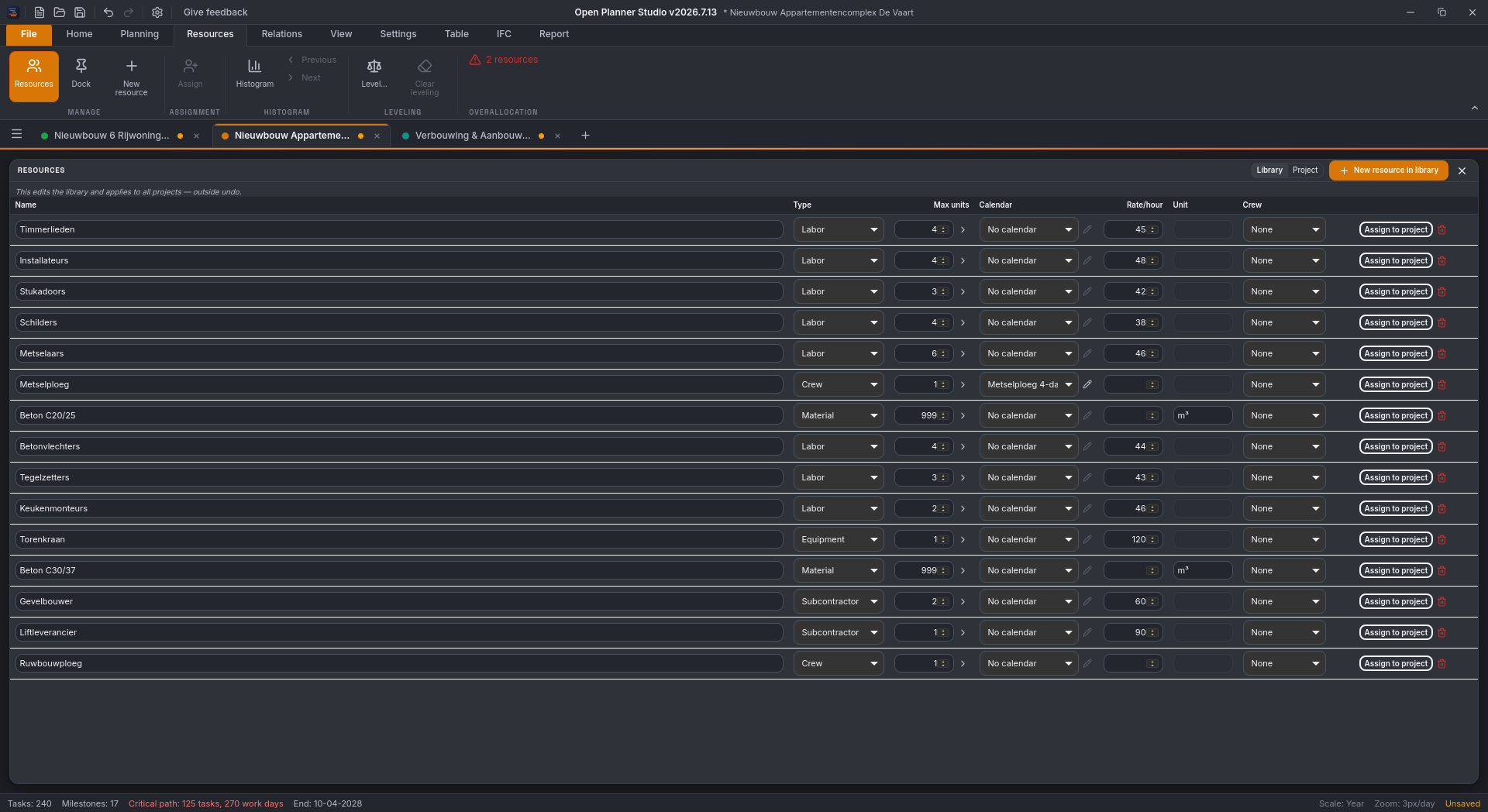
Open Planner Studio — resource-bibliotheek die als bron boven meerdere projecten staat, met arbeid, materieel en onderaannemers
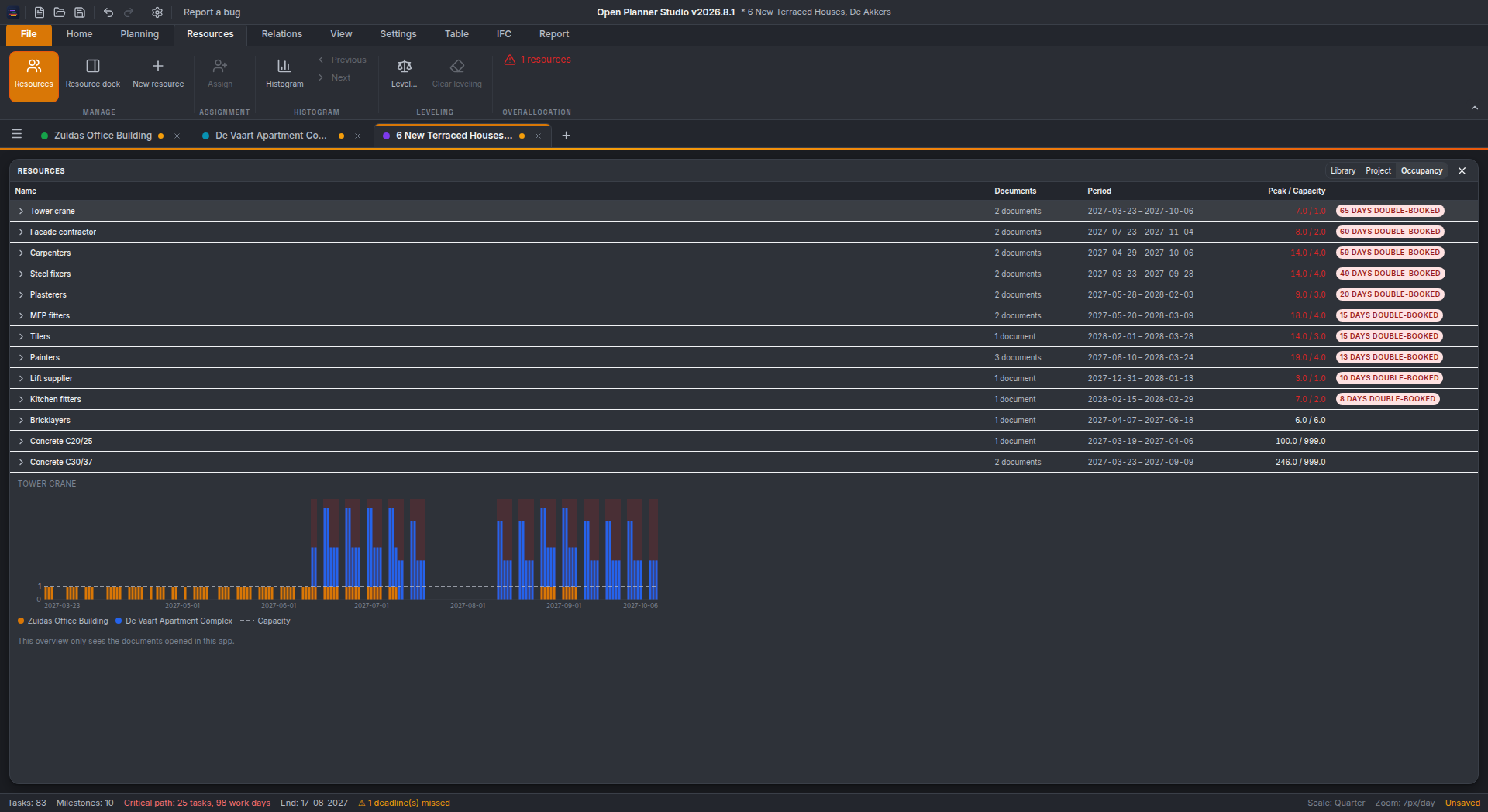
Open Planner Studio — bezettingsoverzicht van de resource-bibliotheek over meerdere geopende projecten, met dubbelgeboekte dagen gemarkeerd en een histogram per resource
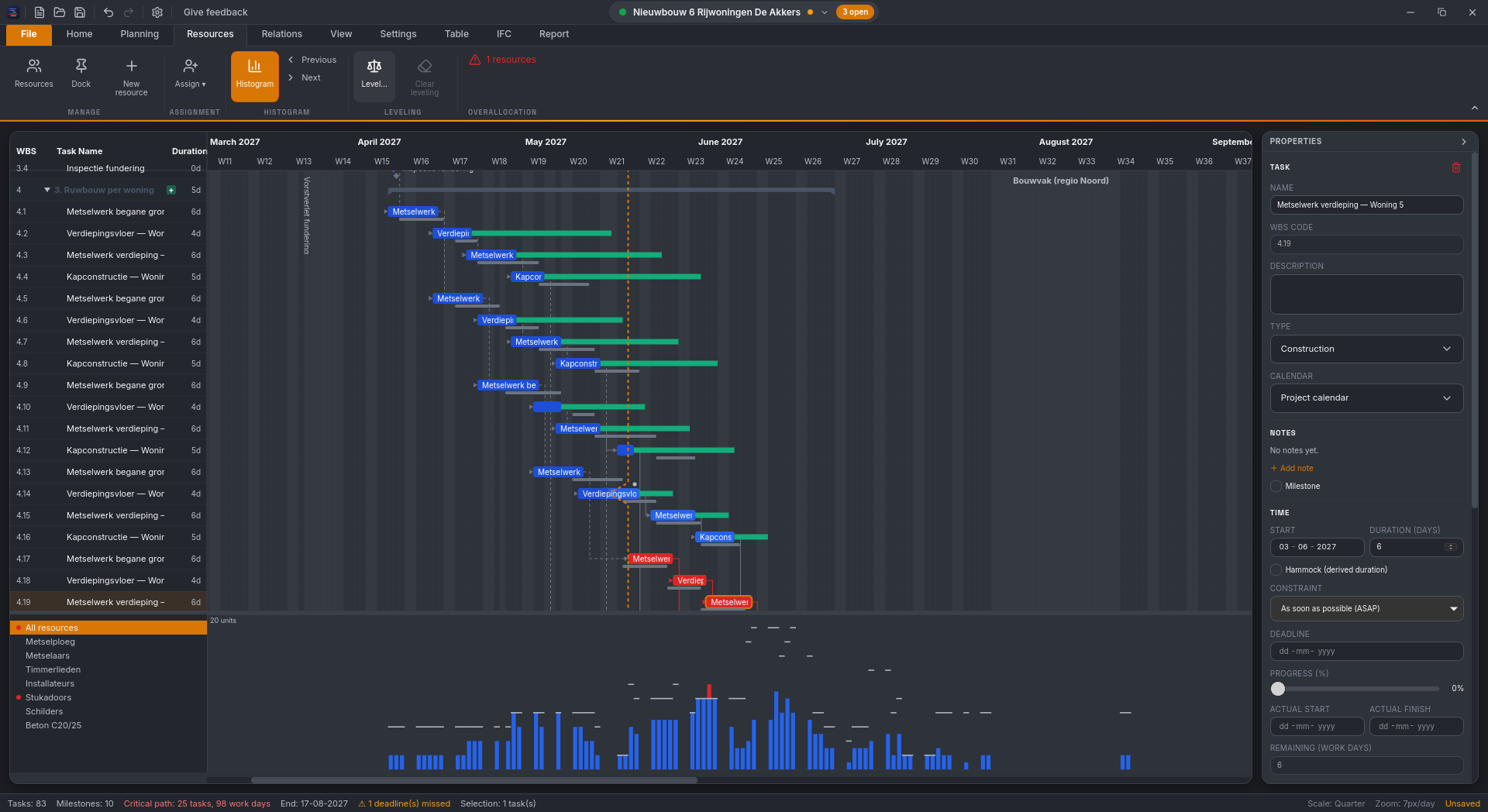
Open Planner Studio — resource-histogram onder de Gantt, met overallocatie en nivellering
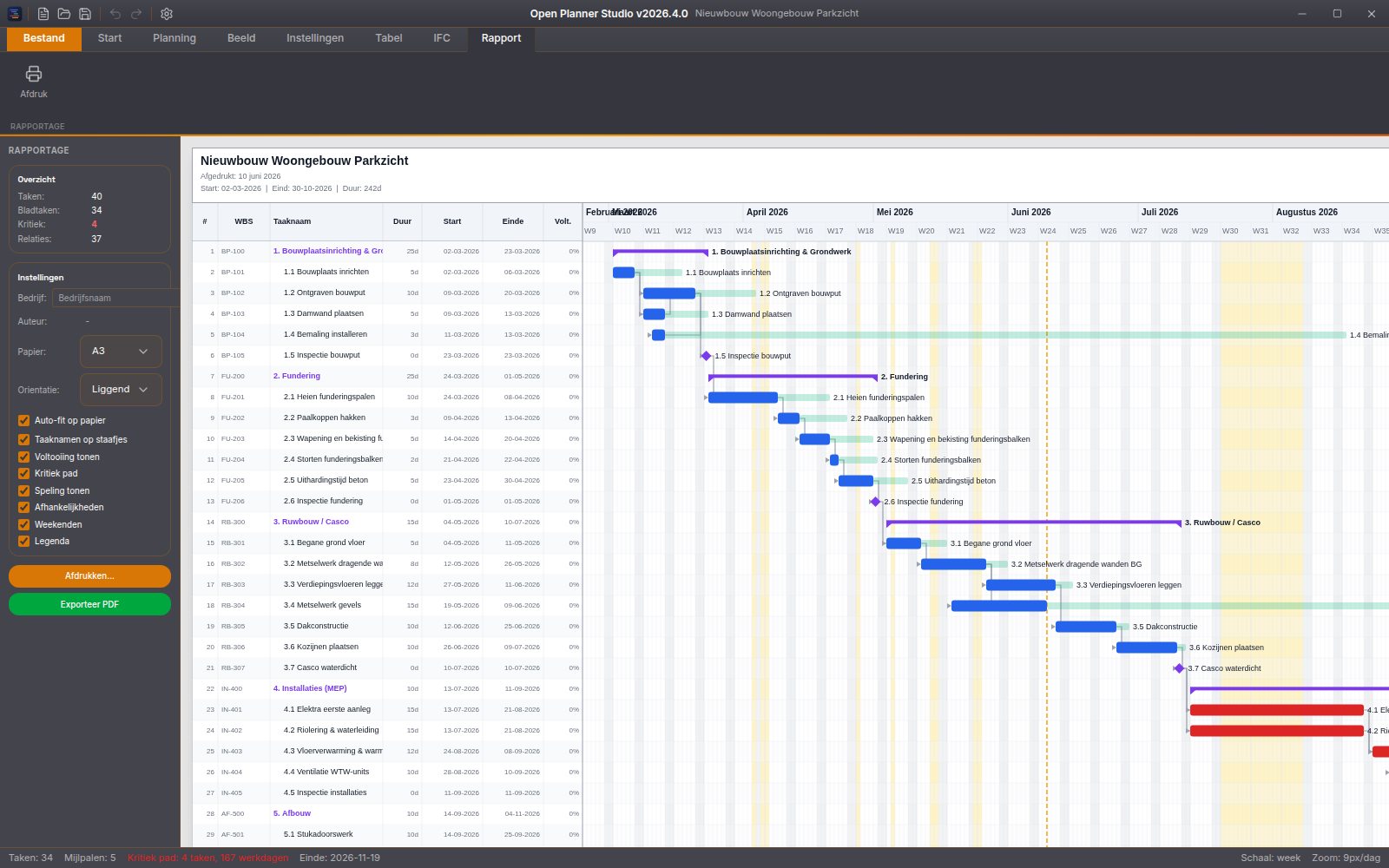
Open Planner Studio — Rapport-tab met papierformaat, lettergrootte en afdrukvoorbeeld van de Gantt
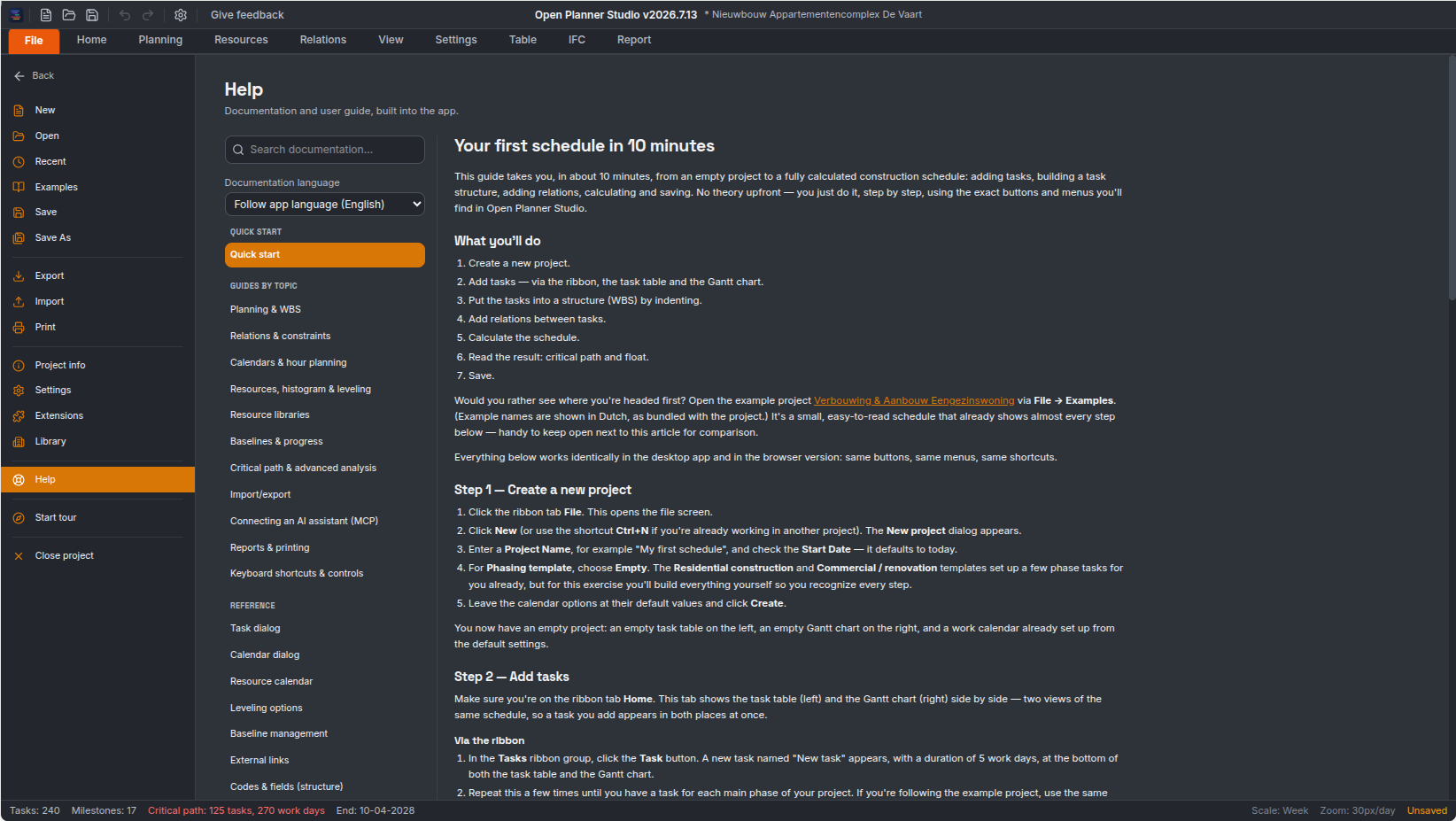
Open Planner Studio — ingebouwde handleiding met quick-start en praktijkgidsen, waaronder het koppelen van een AI-assistent

Open your MS Project files directly, date-faithful to the minute

Open Planner Studio now opens MS Project (.mpp) files natively — no Microsoft Project needed, no intermediate step. Across a 216-file test corpus, every file now lands, after recalculation, date-faithful to the minute: no start, finish or same-day deviations at all, enforced by a permanent regression gate. Split tasks, leveling delay, timephased assignments and manually scheduled tasks are now read and shown as real features — including interrupted bars in the Gantt, the print preview and PDF export.

  • MS Project (.mpp) native — opens directly, no converter, with error messages in all fourteen languages.
  • Date-faithful to the minute — zero deviations across 216 test files, enforced by a permanent regression gate.
  • Split and manually scheduled tasks visible — interrupted bars in the Gantt, the print preview and PDF export.
  • Nothing gets lost — source data survives saving, reopening, undo and crash recovery, even after editing; an edit that releases it tells you so in the app.
  • Also new: a view that shows dates exactly as the file recorded them, a jump button to the WBS on relations, and an active-between filter.

We are looking for testers: work planners, schedulers, project leads and BIM coordinators. Try Open Planner Studio right in your browser and tell us what you think — your feedback helps shape where it goes.

Try the live demo → Join as a tester

Download v2026.8.1

Windows
7.3 MB
Download .exe
macOS (universal)
15.4 MB
Download .dmg
Linux (deb)
8.3 MB
Download .deb
Linux (rpm)
8.3 MB
Download .rpm
Linux (AppImage)
82.2 MB
Download AppImage
Linux (snap)
7.5 MB
Download .snap

Rather not install anything? Open Planner Studio also runs fully in your browser — including opening and saving files.

Features

AI assistant via MCP

An MCP server is built into the app, so an AI client such as Claude Code can read and edit your schedule directly. Switch it on in the AI tab, with a pause button, read-only mode and automatic backups.

Gantt charts

Interactive HTML5 Canvas Gantt with drag and drop, zoom and timeline navigation. Drag a whole selection vertically, collapse non-working days out of the timeline and select with Ctrl+click. Week numbers in the header.

Critical path (CPM)

Automatic critical path calculation with float, near-critical work, multiple critical paths and deadline analysis. A "dates as recorded" view shows a file exactly as it recorded its own dates, when those differ from recalculation.

WBS & table view

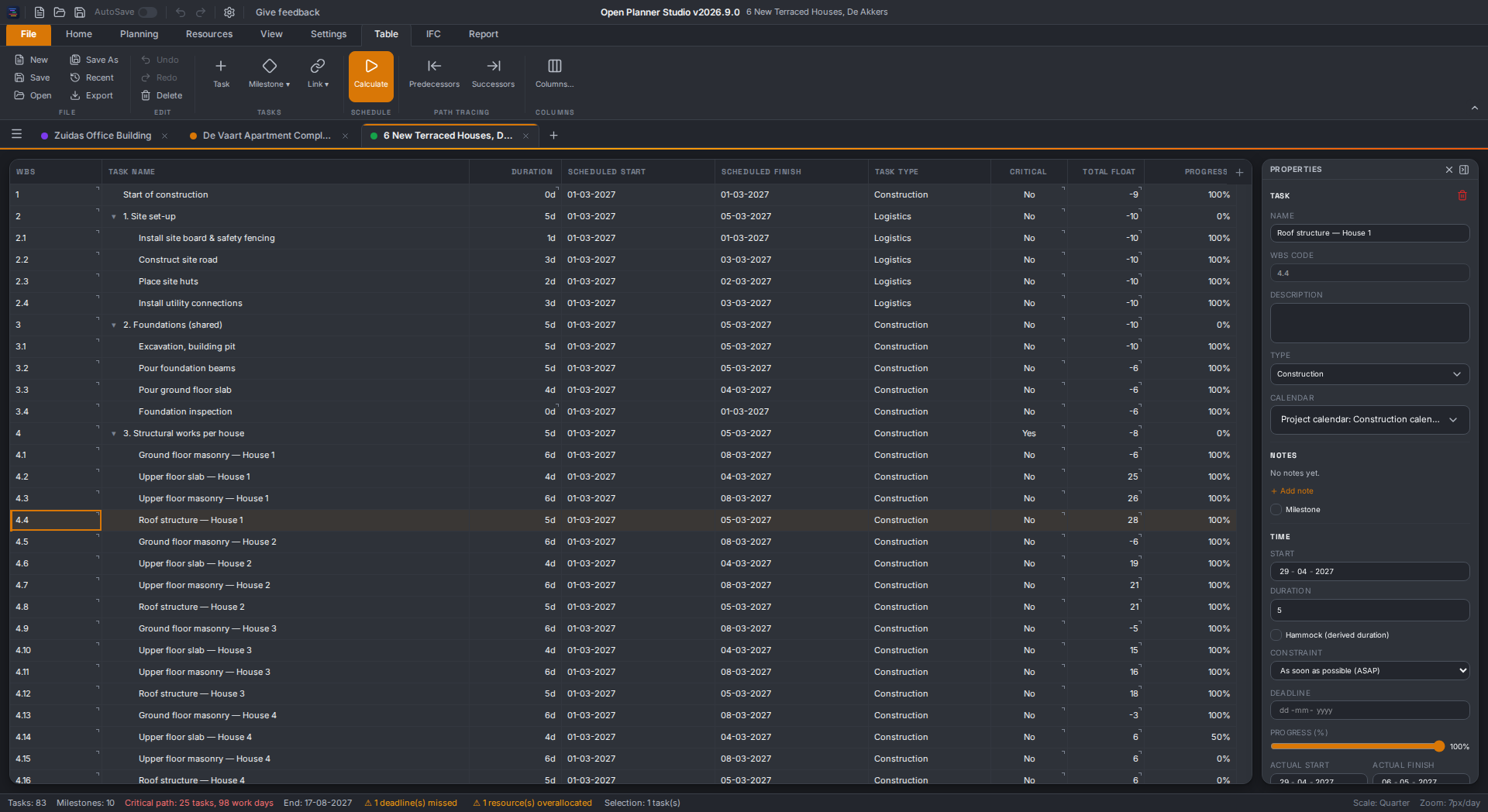
Hierarchical task structure with collapsible chapters. The table edits like a spreadsheet: type in the cell, grab several rows at once and drag rows around.

Native IFC 4.3

Your schedule is an IFC file (buildingSMART standard). With a built-in IFC code editor to generate and apply.

Resources & levelling

Labour, equipment and subcontractors with a histogram and automatic levelling of overallocation. Move assignments while keeping units and curve.

Resource libraries

Share one resource pool across several projects. The library is the source, the project shows what it actually uses, and deviations are flagged so you can resolve them. The occupancy overview adds up every open project — as a table and as a histogram — and marks the days where the committed load exceeds the available capacity.

Baselines & progress

Capture multiple baselines and record progress with a status date, actual start and a cleaned-up progress line.

Calendars & hourly planning

Construction-specific calendars: public holidays, building recess, frost delay, inspection moments and phasing. Plan down to the hour.

Desktop and browser

Runs natively on Windows, macOS and Linux, but also fully in the browser — including open, save, auto-save and crash recovery.

Exchange

Import and export IFC, CSV, MS Project (.xml) and Primavera P6 (.xml) — no intermediate steps or conversion tools.

MS Project (.mpp) import

Opens .mpp files natively, with no Microsoft Project or converter involved — date-faithful to the minute across a 216-file test corpus. Split tasks, resource leveling, timephased assignments and manually scheduled tasks are read and shown as interrupted bars in the Gantt, print preview and PDF export; nothing from the source file is lost, even after you edit it.

4D BIM-ready

Your schedule is an open IFC 4.3 file. BIM software can lay it directly alongside your building model for 4D analysis of the construction sequence, with no conversion needed.

Reporting & printing

Live print preview in the ribbon and export to a real high-resolution PDF (±220 DPI). Configurable font size, a header that repeats on every page and a timeline that may span several pages. Your settings are remembered.

Manual inside the app

Press F1 for an offline manual, available in all fourteen languages: quick start, practical guides — including resource libraries and connecting an AI assistant — and fifteen reference pages, plus eight sample projects to practise on.

Shortcuts & context menus

Full overview via Ctrl+/ and rich right-click menus on the task row, Gantt bar, canvas and band header. Per-task notes with a tickable checklist.

14 languages

Nederlands, English, Français, Deutsch, Español, Italiano, Português, Polski, Türkçe, 中文, 日本語, 한국어 and RTL support for العربية and فارسی.

Ribbon toolbar

Familiar Office-style ribbon with tabs: Home, Planning, Resources, Relations, View, Settings, Table, IFC and Report — plus an AI tab once AI mode is switched on.

Technology

Tauri 2

Native desktop app with a Rust backend for Windows, macOS and Linux.

React 19 + TypeScript

Component-based UI with Zustand + Immer for state management.

HTML5 Canvas 2D

Gantt rendering. TailwindCSS 4 for styling, Vite 7 as the build.

Frequently asked questions

Can I open files from Microsoft Project or Primavera P6?

Yes. Open Planner Studio opens MS Project (.mpp) files natively — no Microsoft Project or external converter needed — and is date-faithful to the minute across a 216-file test corpus; split tasks, leveling delay, timephased assignments and manually scheduled tasks are read and shown. The app also imports and exports MS Project (.xml) and Primavera P6 (.xml) directly, with no intermediate step or conversion tool. IFC and CSV are supported as well.

Do I have to install anything?

No. The full application runs in the browser, including opening and saving files, auto-save and crash recovery. In Chromium browsers (Chrome, Edge, Brave, Opera, Vivaldi) Ctrl+S saves back over the same file, just like on the desktop; Firefox and Safari fall back to the file picker. If you do want to install, there are builds for Windows, macOS and Linux.

What file format is my schedule saved in?

IFC 4.3, the open buildingSMART standard. Your schedule *is* an IFC file — there is no proprietary, closed format. That keeps your data readable outside this application, and lets BIM software lay your schedule directly alongside an IFC building model for 4D analysis of the construction sequence.

What exactly can an AI assistant do with my schedule?

Since v2026.7.13 the app ships a built-in MCP server. An AI client such as Claude Code can read your schedule through it — project overview, tasks, critical path, resources, histogram, calendars and baselines — and edit it too. You switch the bridge on in the AI tab and stay in control: there is a pause button, a read-only mode, automatic backups and an activity panel listing every call the assistant made.

What does Open Planner Studio cost?

Nothing. The application is free and open source under the LGPL-3.0 licence. No subscription, no per-seat licence fees.

Which systems does it run on?

Windows (.exe), macOS (universal .dmg, both Intel and Apple Silicon) and Linux (.deb, .rpm, AppImage and snap). Plus fully in the browser.

Does it fit construction practice?

Yes. You set up construction-specific calendars with public holidays, building recess, frost delay, inspection moments and phasing, and you can plan down to hour level. The interface is available in fourteen languages.

Can I see which tasks drive the end date?

Yes. The critical path is calculated automatically, with float, near-critical work, multiple critical paths and deadline analysis. Resources get a histogram with automatic levelling of overallocation, and multiple baselines let you track deviations from the original plan.

Live demo → All releases → GitHub →

Release notes

v2026.8.1 · 2026-08-19

A release built around one feature, taken all the way from a first read to full date-fidelity: native MS Project (.mpp) import — plus the mainline work that landed after v2026.8.0 was tagged (the "dates as recorded" mode, the WBS jump button, the active-between filter). About 357 commits since v2026.8.0 in total.

Added

  • Open Planner Studio can now open MS Project (.mpp) files natively. The format joins the existing open pipeline — its own registry entry, a lazily loaded parser chunk, translated error messages in all fourteen languages — with no external converter involved: the file's own binary container (a Compound File Binary / OLE2 structure) is parsed directly, then its calendars, tasks, hierarchy, constraints, relations, resources and assignments are read out of it.
  • .mpp import is now date-faithful to the minute. Across a 216-file test corpus, every file now lands on exactly zero start, finish and same-day deviations after recalculation — no exceptions — enforced by an always-on regression gate that fails the moment a single pinned file drifts again or picks up an undocumented exception. Getting there took several new pieces of scheduling engine, all shared with the rest of the app rather than bolted onto the .mpp path alone: task splits are now a first-class feature — read from the source file, carried through the critical-path calculation as per-segment remaining work, and drawn as genuinely broken bars in the Gantt chart, the print preview and PDF export; leveling delay is read and applied to the schedule to the minute; timephased (contoured) assignments now walk their own imported date window and duration through the assigned resource's own calendar — holiday-aware, and correctly apportioning work when a task carries more than one simultaneous assignment; manually scheduled tasks follow genuine MS Project semantics, including how their fixed dates propagate to successors; out-of-sequence progress is read from MS Project's own resume/stop fields instead of being inferred; and the critical-path solver gained a handful of matching refinements — an unsnapped raw anchor for root tasks that start exactly on a calendar band boundary, a zero-duration milestone that no longer snaps past its own deadline, and a dedicated rule for resumed out-of-sequence work.
  • A "dates as recorded" mode (issue #63): when a file's stored dates differ from what recalculation produces, the app can now show the project exactly as the file recorded it — with its own toolbar strip, an in-app guide article, and a working undo path back to the recalculated schedule. Leaving the mode is explicit: any date-touching edit or a recalculation returns to computed dates.
  • A WBS jump button on dependencies (issue #65): every dependency row in the task properties panel now shows the linked task's WBS number as a clickable button — hover for the same details as a Gantt bar tooltip, click to select the task while the chart zooms and scrolls to it, auto-expanding any collapsed parents.
  • An "active between" filter field (issue #32): filter tasks on interval overlap with a date range, using both start and finish.

Changed

  • Nothing a .mpp file contains is thrown away on import, and edits only ever switch off derived steering — never delete data. Raw contour periods, MS Project's task-type and effort-driven flags, and every other field added for date-fidelity round-trip through the project's IFC file like the rest of the project data. Editing a task that MS Project was actively steering hour by hour never silently drops what was read from the source; it only stops that hour-by-hour distribution from applying going forward, and the underlying data stays in the document.
  • Editing a task now says, at the moment you edit it, when the edit releases MS Project's original hour-by-hour distribution. A one-time in-app notice appears the first time this happens in a document, and the task's properties panel carries a small marker so the state stays visible afterwards — both link straight to the relevant section of the MS Project import guide. An AI assistant working through the MCP bridge gets the same signal as a timephasedGuidanceLost field on its response.
  • Every user-facing notification in the app is now in-app. The last native browser/OS confirm dialog (removing a resource library company) was replaced by the app's own confirmation dialog; only the file open/save pickers remain native, as they must.
  • The .mpp opening notice now counts real signals instead of estimating them, and the MS Project import guides (Dutch and English) were rewritten so each claim points at the code or test that backs it up.

Fixed

  • Auto-save could fail on a fresh install because the application data directory did not exist yet (issue #72): the directory is now created before the first auto-save or library write.
  • A calendar name collision on IFC round-trip could cross-contaminate two calendars. Timephased duration data translated its resource-calendar reference by calendar name, but the app never enforced calendar names being unique — two identically named calendars with different working hours could silently swap places after a save/reload. The translation now goes through the calendar's own identity instead of its name.
  • A finish-no-later-than or start-no-later-than deadline could push a milestone forward past that very deadline. A guard meant to keep those deadline types from affecting forward scheduling ran too early and let a zero-duration milestone snap to (or past) the deadline anyway.
  • Duration, date or duration-type edits did nothing on a task whose imported work distribution had already been apportioned across more than one assignment. The frozen, imported values kept winning over the edit; such edits now correctly release that distribution instead of being silently ignored.
  • A calendar representing a full day as one continuous band failed to switch into hour-precision mode. Calendars in the "24 Hours" family (one continuous midnight-to-midnight band) were missing a needed signal and silently stayed in day-precision mode, losing hour-level detail for every resource on them. The fix lives in the shared sub-day calendar layer, so it applies to IFC, MSPDI and Primavera imports as well as .mpp — an existing project with such a calendar will now correctly promote to hour precision on open.
  • Task durations computed against a non-whole-number workday length (for example 8.4 hours, a value MS Project allows) could land one workday late. A tiny floating-point rounding error was read as "not finished yet" and added an extra workday that shouldn't have been there.

Documentation

  • The MS Project import guide (Dutch and English) was rewritten around what the engine actually does now, not what it did at the start of this effort: split tasks are always visible, manually scheduled tasks keep their own dates with no slack by design (not "shows slack"), leveling delay is counted in both directions, and contoured assignments follow their imported window but are not yet recomputed after a manual edit. The WBS guide and the relations/constraints guide each gained a short note on how a manually scheduled task behaves (it doesn't roll up; it wins over a hard pin). The import/export guide now spells out what each export format does with manually-scheduled, leveling-delay, split and resume/stop data — CSV drops it silently, MSPDI and P6 exports warn.

Bekijk alle releases op GitHub →