More detailThis page is an overview. The full user guide on GitHub describes every tool in detail, with all its limits and measurements.
1.Installing
Open Pointcloud Studio runs on Windows, macOS and Linux. Every package is in the download block; each button starts the download at once, without an account.
Windows
The installer (.exe) installs for the current user without administrator rights, or for all users. Rather not install anything? Take the zip. When Windows warns about an unknown publisher, choose More info and Run anyway.
macOS
Open the disk image (.dmg) and drag the application to Applications. It is not notarised, so macOS refuses the first start: allow it once under System Settings → Privacy & Security → Open Anyway.
Linux
Make the AppImage executable once with chmod +x and start it. There is also a .deb package and an archive with the program alone.
Open CAD Studio comes with itEvery package carries Open CAD Studio, so a drawn DXF or DWG can be looked at right away. Nothing else has to be installed.
2.The window
The window has six parts. Once you recognise them, you find everything.
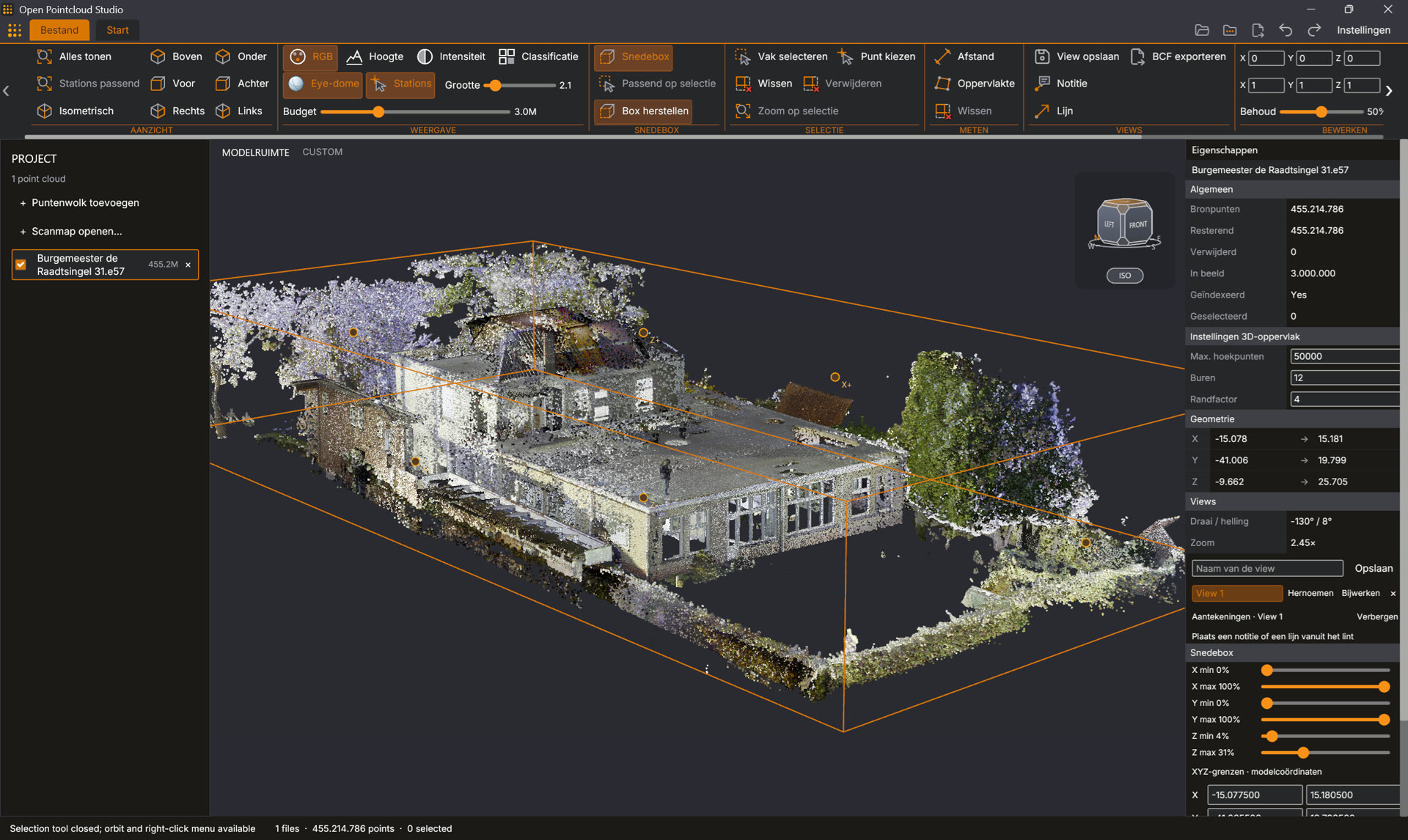
The window with a scan of 455 million points: the Project Browser at the left, the scene in the middle, Properties at the right.
Top strip: the File button, the Start and View tabs, quick-access buttons (import point cloud, open scan folder, export, undo, redo) and Settings.
Start ribbon: file, navigation, selection, section box, meshing, 2D section drawings, sheets, measuring, annotations, index and export. On narrow windows groups fold into dropdowns.
Project Browser (left) with five groups: SCANS (the open clouds, each with a visibility switch), CLASSES, VIEWS (3D views, plans, elevations, sections and opened files), SHEETS and BCF.
Scene (middle): the 3D view with the view cube. Tabs above it put the 3D model and the opened views and drawings side by side.
Properties (right): what the active scan holds and the settings of what is in use, such as the section box, a measurement or a mesh.
Status bar (bottom): what is going on, how many points are open and selected, and what the main area shows.
Click a scan in the Project Browser to make it the active scan. Measuring, editing, meshing, exports and views always work on the active scan. Shift and Ctrl mark several scans, to hide or close them together.
3.Opening scans
Open a scan with Import point cloud in File, the icon in the top strip, + Add point cloud in the Project Browser, or by dropping files or folders on the window. Several files can be open at once.
A whole scan project
Open scan folder… opens every supported file in a folder (not in sub-folders), ordered by name. A scan project file (.rcp) opens the scans it lists when they lie beside it as E57, LAS, LAZ, PLY, PCD, PTX, PTS or text. The indexed copies (.rcs) are a closed format and are not read.
What appears first
LAS and LAZ open at once from their header, with a sample of points spread through the file.
Other formats are read in full the first time. Large files show their points while they are read, so a scan fills in step by step.
A strip above the scene shows the progress of every import and index, the time left and a Cancel button.
4.Looking around and display
Orbit: drag with the middle button while holding Shift, or with the left button and Alt.
Orbit about a point: double-click a point; the view then turns about it. Double-click empty space to turn about the centre again.
Pan: drag with the middle or right button. Zoom: turn the wheel, it zooms at the pointer.
F or Zoom all gives the isometric overview of the whole model. Click a face or corner of the view cube for a fixed direction.
Display
The DISPLAY group sets how points are drawn: colours by RGB, Elevation, Intensity or Classification; Eye-dome for shading by depth, which brings out edges and relief; the point size (0.1 to 20) and the budget: the most points drawn at once (100,000 to 10 million).
Under CLASSES classifications switch on and off like layers. A hidden class is also left out of selections and meshes.
5.Stations, photos and walking
Scanner positions from E57, PCD and PTX files appear as station markers. Fit stations frames them with the cloud; in Properties, Show list lists every station with its coordinates.
Station photos
E57 scans often carry the photos of each station. Such a station becomes a ball that shows its surroundings. Click a ball to stand in that station: drag to look around, scroll to zoom and click another station to step over to it. Panoramas and photos along a walked path open with a double-click on their mark; the Photo slider sets how much the photo covers the points.
Walking
WASD walk through the scene, Q and E move down and up, and Shift walks faster. Escape or Back to 3D view returns.
Colour from photos
A scan with photos can give its points the colours the photos see, for instance for a cloud without colours. The Colour from photos block in Properties colours what lies in the section box; Undo takes it back. The source file is not changed.
6.Section box
Section box switches on a box that clips everything outside it. Use it to look inside a building, pick a storey and decide what a drawing, mesh or export uses.
The section box limited to a slice of the height, so the facade with its windows comes free.
Drag one of the six handles to move that face, or type Min and Max for X, Y and Z in Properties and choose Apply XYZ limits.
Fit selection fits the box around the selected points; Reset box opens it to the whole model again.
Turning: with the curved arrows, with Rotation (°), or with Align to walls, which turns the box along the main direction of the walls.
Where the box cuts a mesh, the cut is shown filled (Fill the cut), as in a section drawing.
The box only clips what is drawn. Inside it the application reads more detail from the index, up to the point budget.
7.Selecting and editing
Selecting
Without a tool a click selects the nearest point and a drag a rectangle. Box select takes every source point in the rectangle, also those not on screen.
Pick point shows the coordinates, colour, intensity and class of one point under Selected point.
Clear drops the selection; Zoom selection frames it.
Editing
The Delete key hides the selected points. Undo and Redo go back up to eight edits.
Thin keeps a set percentage of the points, evenly through the whole scan.
Move and Scale shift or scale the active scan; Reset transform puts it back.
None of these change the source file. To keep the result, export it to a new file.
8.Measuring
Measure on the Start tab begins a distance; in Properties you choose Distance or Area. A click picks the source point under the pointer. A drag still orbits, so the view can be turned between two points.
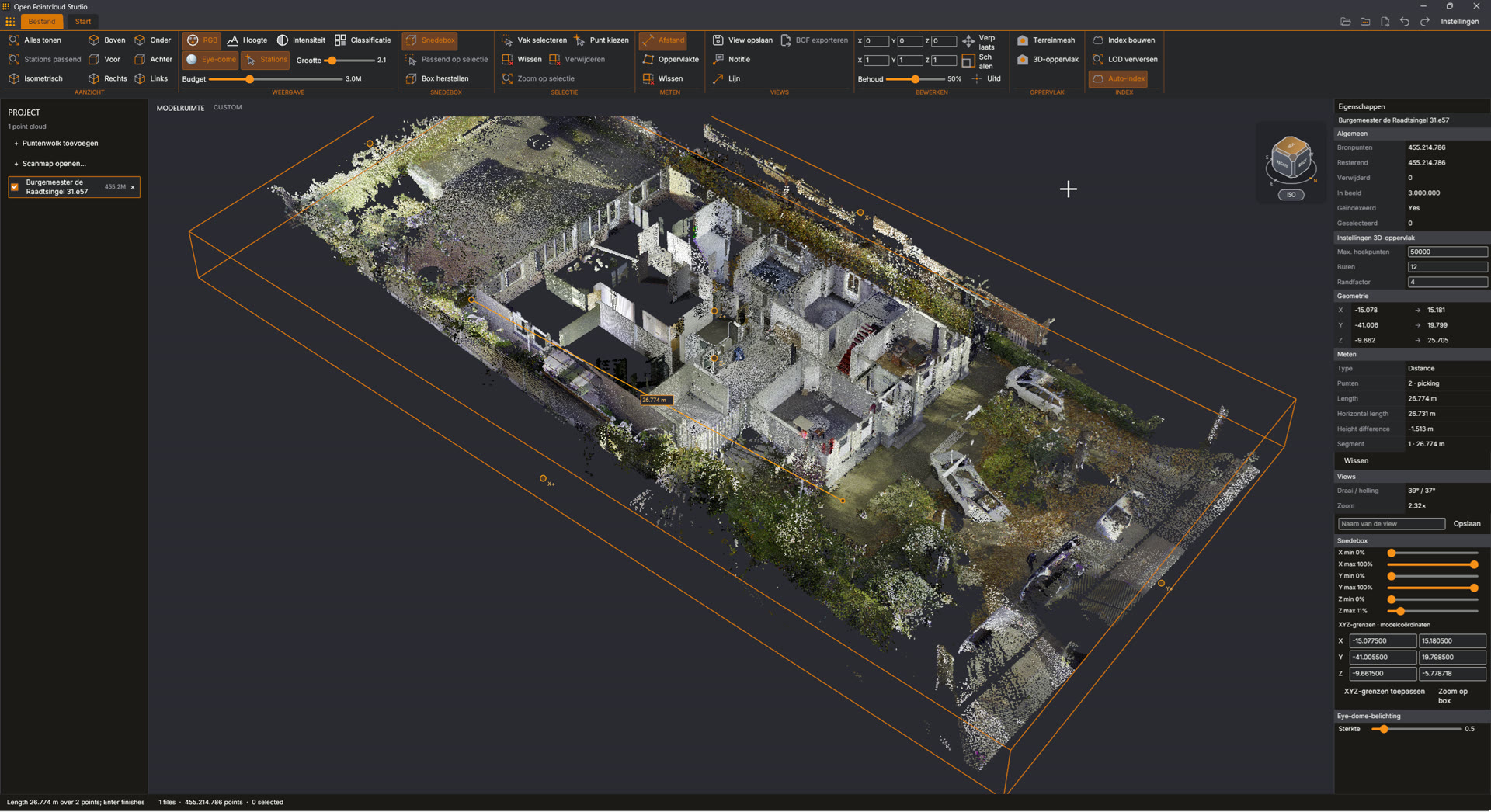
A distance of 26.774 metres between two points, with the section box low in the building.
Distance: two points. You get the 3D length, the horizontal length and the height difference.
Area: a closed polygon; finish with Enter or a click on the first point. You get the true area (also of a sloped roof or a wall), the plan area and the perimeter.
Backspace removes the last point, Escape stops. Values are in metres with three decimals; the coordinates of a scan are read as metres and not converted. A measurement is not saved with the scan.
9.Views, notes and BCF
Views
Save view under VIEWS keeps what the scene shows: the camera, the section box and the colour mode. A click on a view puts it all back. Every view has buttons to rename, update, duplicate and delete it. A scan holds at most 64 views.
Notes and lines
Note and Line in Properties place annotations on points of the scan: a note is a point with text, a line an arrow between two points. They belong to the active view and stay on their points while the camera moves.
Snapshots and BCF
Every view gets a PNG snapshot of the scene. Views as BCF… (File → Export) or Export BCF… in the Project Browser writes all views of the active scan as one BCF 2.1 file, with camera, section box, notes as comments and the snapshots. That takes findings to a BIM program.
10.Exporting and merging
The exports are in File under EXPORT. The format is chosen on the Workspace page: PLY (binary or ASCII), LAS, LAZ, E57, XYZ, PTS or CSV.
Export
What it writes
Full resolution…
The active scan without deleted points, moved and scaled as in the scene
Selected points…
The selection only
Without selected points…
Everything but the selection
Section box…
The points inside the section box
Section drawing…
What the box cuts, as a 2D drawing in DXF or DWG
Every Nth point…
One point in 2, 5, 10, 20, 50 or 100
Surface mesh…
The mesh as OBJ, PLY, STL, DXF, DWG or IFC
Detected faces…
The faces as JSON, OBJ, DXF, DWG or IFC
Views as BCF…
The saved views
A LAS or LAZ file exported to LAS or LAZ keeps the original point records; an unedited scan exported to its own format is an exact copy. Merge visible LAS/LAZ scans… joins the visible LAS and LAZ layers into one file.
11.Section drawings
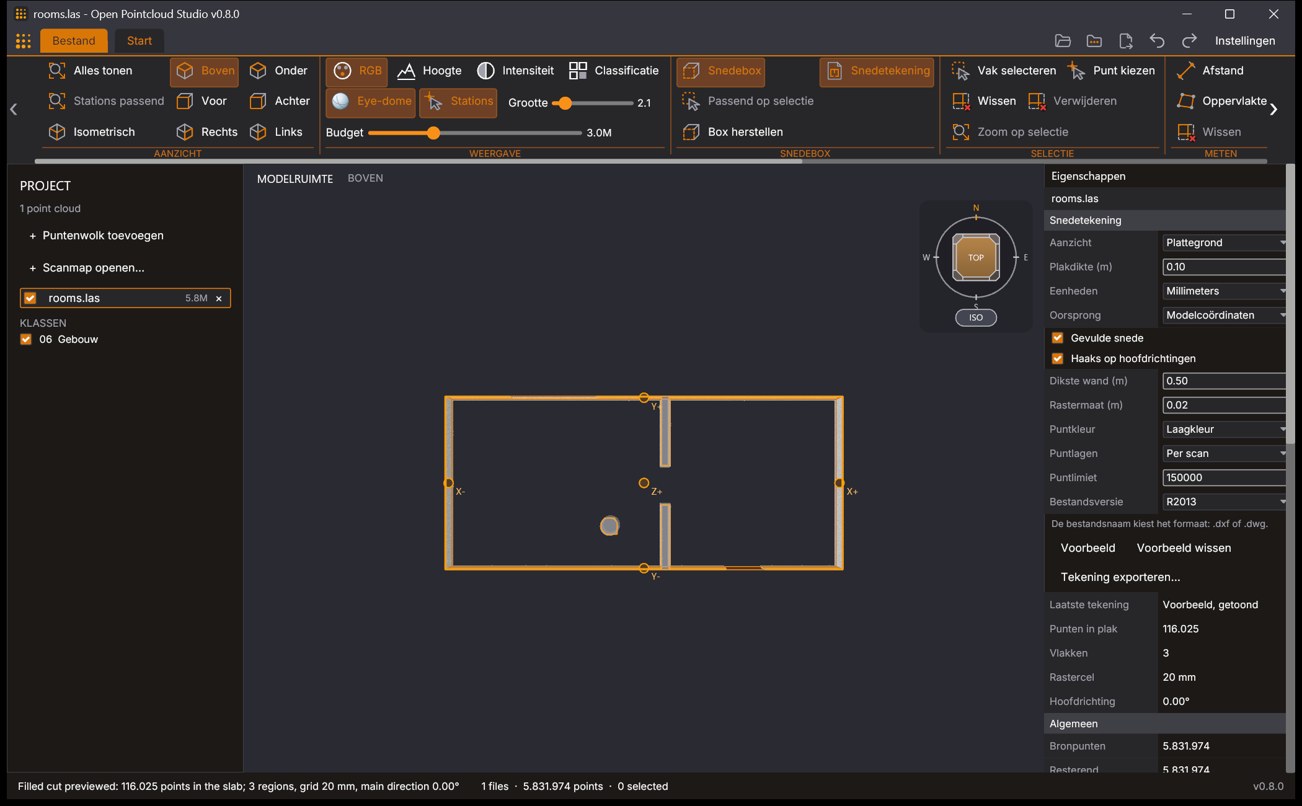
Section drawing in the SECTION BOX group makes a 2D drawing at scale 1:1 of what the section box cuts, as DXF or DWG for a drawing program. It shows a slab behind one face of the box: the points, the filled cut (walls, columns and floors as filled regions with a closed outline), the frame and a line of text.
Section drawing of two rooms: the plan with the filled cut, a door opening and a round column.
A plan, step by step
Open the scans of the storey and hide what should stay out of the drawing.
Switch on the Section box and put its top face at the cut height, for instance 1.10 m above the floor. With a slab of 0.10 m you see what lies between 1.00 and 1.10 m: above most furniture, through the doors.
Choose Section drawing, leave View on Plan and Slab thickness (m) on 0.10.
Choose Preview. When a cupboard or a person shows up as a region, select and delete those points and preview again.
Choose Export drawing… and give a file name ending in .dxf or .dwg.
A section
Put a side face of the box where the cut should be (turn the box with Align to walls first when the building stands at an angle) and choose the matching view: Section, front, back, left or right. A thicker slab, up to 5 m, also shows what lies behind the cut, as an elevation does.
The Drawing view
Create 2D plan / elevation / section… under VIEWS makes a drawing you look at in the application itself, on a light sheet with layers you switch on and off. Its blue crop region can be dragged or turned with RO; the drawing is then made again. Open in CAD viewer opens the last exported DXF or DWG in the Open CAD Studio that comes with it.
Limits of the filled cutThe filled cut is derived from the points. A wall scanned from one side becomes a narrow strip, openings narrower than about half a metre are closed, and furniture in the slab is drawn too unless its points are deleted first.
12.Sheets
A sheet is paper (A4 to A0) on which saved 3D views, plans, elevations and sections are laid out for printing, with a border and a title block. Make one with New sheet… under SHEETS.
Placing views: drag a row of VIEWS onto the paper. A drawing goes at 1:100 (also 1:20, 1:50, 1:200, 1:500 or a scale of your own); a 3D view shows its snapshot.
Annotating: Text, Dimension, Leader and Line, with dimensions that snap to ends and corners.
Locking: a locked view or drawing stays as it was set up.
Export PDF… writes the sheet as a PDF of one page, with the drawings as vectors.
13.Meshing
Mesh Pointcloud in the SURFACE group opens a card that leads in three steps from the points to a mesh or to the faces of a building: Method, Options and Run. The methods work on what lies inside the section box.
Method
Use it for
Closed mesh
A room or part of a building whose surface has to be right: without overlaps, closed where there are points, with the measured distance between points and mesh
Terrain mesh
Ground and other surfaces seen from above (2.5D)
3D surface
A quick impression of a whole scan, walls included; it leaves holes and is not watertight
Flat faces
The planes of walls, floors and roofs and round columns; makes no mesh (see Detected faces)
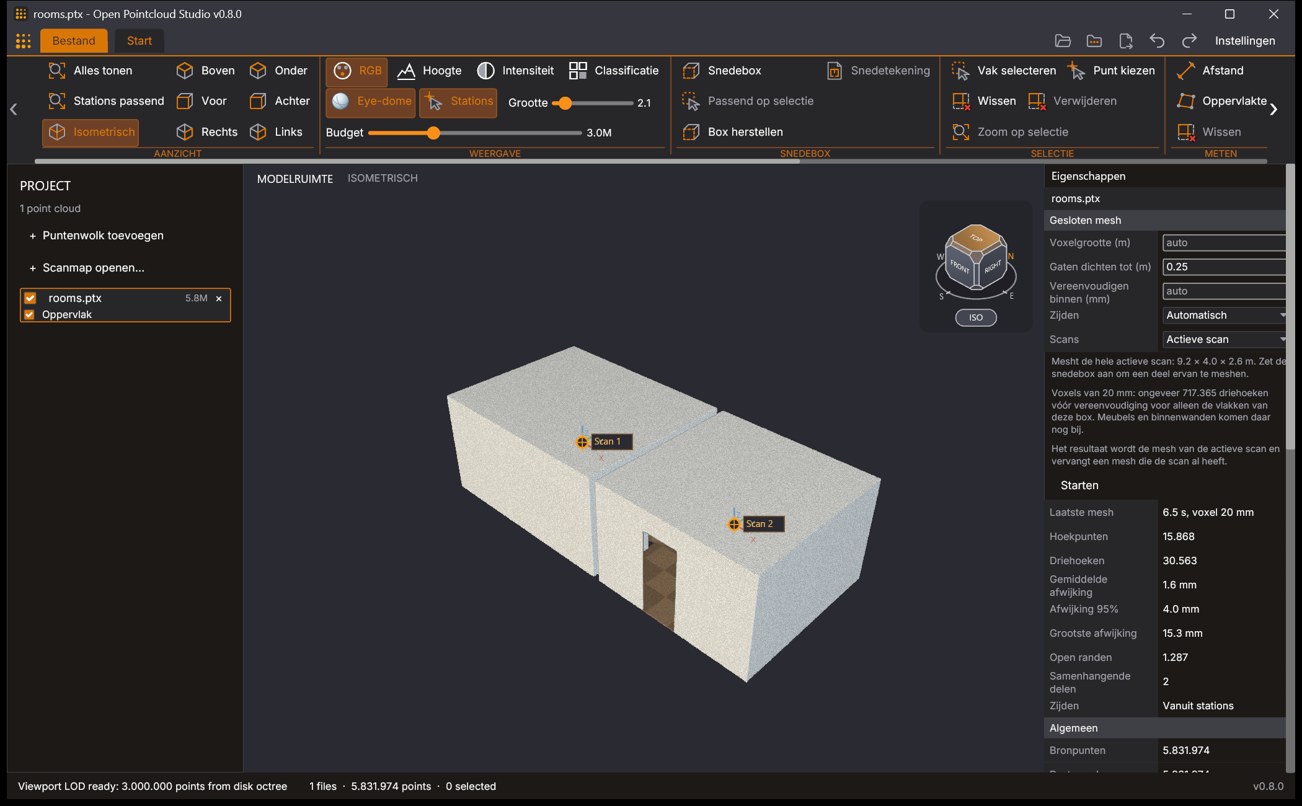
Closed mesh of two rooms, with an open door opening in an outer wall.
A closed mesh of one room
Open the scans of the room and wait until they are indexed.
Put the section box around the room: the sides to the middle of the walls, the top face just above the ceiling, the bottom face just under the floor.
Choose Mesh Pointcloud → Closed mesh → Next. For several stations as separate files, set Scans to All visible scans.
Choose Run. When done, the card shows the vertices, triangles and mean deviation.
Keep the mesh with Export mesh… as OBJ, PLY, STL, DXF, DWG or IFC; it exists in this session only.
A scan holds one mesh: a new one replaces the previous one. OBJ, PLY, OFF and STL files also open as meshes. A mesh has at most four million vertices and eight million triangles.
14.Detected faces
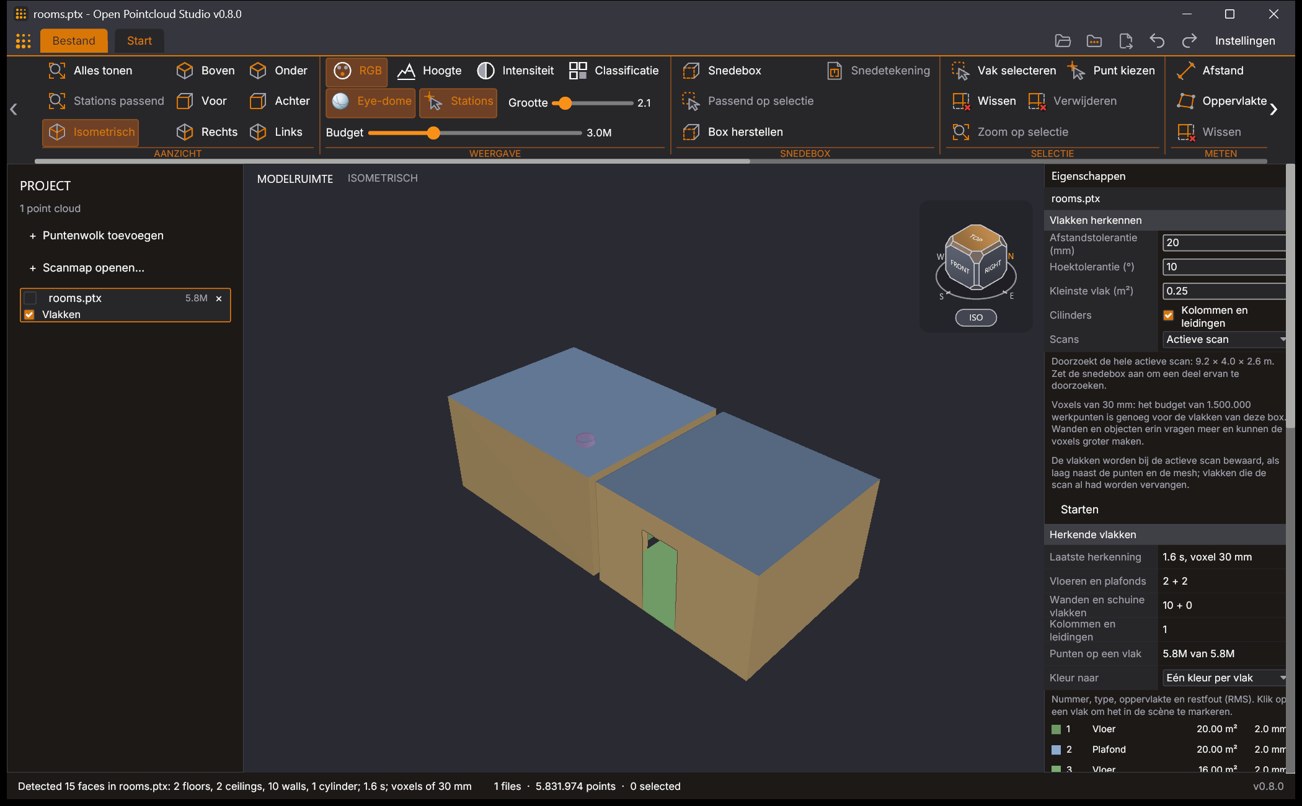
The Flat faces method of Mesh Pointcloud finds the faces in part of a scan: floors, ceilings, walls and sloped planes, each as one plane with an outline (a window is a hole, a door a notch), plus round columns and pipes as cylinders. Each face says how many points belong to it and how far they lie from it.
Detected faces of two rooms, each type in a colour of its own: ceilings blue, walls sand.
A face is not a mesh. A mesh follows the scanned surface with many small triangles; a face replaces a wall by the one plane that fits it. Faces are what you measure and draw from: the area of a floor, the height between floor and ceiling, whether a wall is plumb.
Put the section box around the room, as for a closed mesh.
Choose Mesh Pointcloud → Flat faces → Next → Run.
Look through the list under Detected faces in Properties; a click highlights a face in the scene.
Keep them with Export faces… as JSON, OBJ, DXF, DWG or IFC.
15.3D BAG buildings
3D BAG buildings… in File downloads building models of the Netherlands from the public 3D BAG register and shows them as a mesh layer beside your scan.
Type an area in RD New coordinates, take it over from the active scan or the section box, or draw a rectangle on the map.
Choose the level of detail: LoD 1.2, 1.3 or 2.2, and choose Download OBJ.
One download covers at most 2 by 2 km and about 5,000 buildings.
The result is an OBJ file in RD New and NAP heights, with the 3D BAG attribution (CC BY 4.0). This needs an internet connection.
16.Index and level of detail
A large cloud is not held in memory. The application builds an index on disk (an octree) and reads from it the points the camera needs, up to the point budget.
A cloud of one million points or more is indexed automatically after it opens. Auto-index in the INDEX group switches that off; Build index starts one by hand.
The index is kept on disk. When the same unchanged file is opened later, it opens straight from its index.
While moving, the points on screen stay; shortly after the camera stops, the detail for the new view is read.
Disk spaceAn index can take several gigabytes on disk for a large survey.
17.Settings and extensions
The Settings button at the top right, or Ctrl+,, opens the dialog:
General: the language (auto-detect, English or Dutch) and the CAD viewer that opens exported DXF and DWG files.
Appearance: the theme, one of the five of the OpenAEC style book: Light, Forge, OpenAEC, Blueprint or High contrast.
About: version, licences and a link to the source code.
Extensions
Under File → Extensions you switch built-in features on or off (such as 3D BAG) and install extensions from others. An extension is a program that runs with your rights: install only extensions whose author you trust.
Command API and MCP
Every window starts a command server on 127.0.0.1, and open-pointcloud-studio --mcp starts an MCP server, so scripts and AI assistants can drive the application. See the product page for the documentation links.
18.Keys and mouse
Input
What it does
Left drag
Rectangle that selects points
Alt + left drag, Shift + middle drag
Orbit
Middle or right drag
Pan
Double click
Orbit about the point under the pointer
Wheel
Zoom at the pointer
F
Zoom all
R then O
Turn the crop region or the section box; type an angle, Enter applies
Delete
Hide the selected points
Ctrl+Z / Ctrl+Y
Undo / redo
Enter / Backspace
Finish a measurement / remove its last point
Escape
Close a dialog or card, stop walking, back to Select
WASD, QE
Walk; down and up (Shift = faster)
Ctrl+Tab
Next tab above the scene
Ctrl+,
Settings
On macOS Cmd takes the place of Ctrl, except for Ctrl+Tab.